

How to Schedule an Email in Outlook (Every Version, Step by Step)
If you’ve ever finished writing an email at 11:40pm, you probably felt that sending it right then may be unprofessional, plus it buries the email under everything that arrives before they open their laptop in the morning.
That’s the whole reason to schedule an email in Outlook. You write when you have time, and it arrives when someone is actually there to read it.
The catch is that Microsoft gives the same feature two different names depending on which Outlook you opened, and parks the message in two different folders. Below, we’ll cover how to schedule an email to send later in Outlook on every version, where your message waits, why the option sometimes isn’t there at all, and the one thing scheduling can’t do for you.
How to schedule an email in Outlook: the short answer
Click the arrow next to Send, choose Schedule send, pick a time, then hit Send. Your message waits in Drafts and goes out on its own.
That covers the new Outlook, Outlook on the web, Mac, and mobile. If you’re on classic Outlook for Windows, the feature is called Delay Delivery, and it lives on the Options tab: different path, different folder, and different rules about whether your PC needs to be switched on.
How to schedule send in Outlook (new Outlook, Web, Mac and mobile)
How to schedule send in Outlook is identical across all four, since they all use the same dropdown next to the Send button:
- Write your email as usual, with recipients, subject, body and attachments.
- Click the arrow (⌄) next to Send.
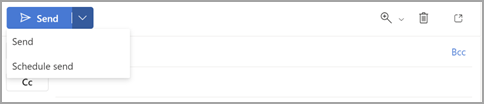
- Select Schedule send.
- Pick one of the suggested times, or choose Custom time and set your own date and hour.
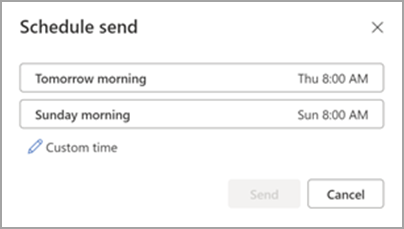
- Click Send.
Nothing leaves yet. The email drops into your Drafts folder with a banner showing the delivery time, and Microsoft’s servers take it from there. According to Microsoft’s documentation, it sits in Drafts until the scheduled moment arrives.
Which answers the question most people are really asking — yes, your computer can be off. Shut the laptop, quit Outlook, get on a plane, and the email still goes out at 8:03am Tuesday, because it was never sitting on your machine in the first place.
- On Mac, it’s the same dropdown next to Send, followed by a date and time picker.
- On iPhone and Android, write your message and tap the clock icon beside the blue Send arrow at the bottom of the screen. Pick a suggested slot or tap “Choose a time.” Scheduled messages then live in a dedicated Scheduled folder rather than Drafts.
How to schedule an email in Outlook with Delay Delivery (classic Outlook)
Classic Outlook for Windows has no Schedule Send button, so if you’ve been hunting for one, stop looking. The feature is called Delay Delivery and it’s on a completely different tab.
Here’s how to delay sending an email in Outlook (classic desktop app):
- Compose your message.
- In the message window, open the Options tab.
- Click Delay Delivery.
- Tick Do not deliver before, then set your date and time.
- Click Close, then Send.
Your email now sits in the Outbox rather than Drafts. This is where Outlook Delay Delivery parts ways with schedule send in a way that catches people out constantly — the message is actually parked on *your* computer. Microsoft’s troubleshooting guidance confirms that deferred messages stay in the Outbox and only leave when Outlook is running and connected.
Close Outlook on Friday afternoon with a Monday 9am send queued up, and it goes out whenever you next open Outlook on Monday. That might be 9:14am or 11:30am.
Delay every email you send by a few minutes
Classic Outlook can also hold all outgoing mail for a set period, which is the closest thing Outlook has to an undo button. Go to File → Manage Rules & Alerts → New Rule → Apply rule on messages I send, skip past the conditions, and choose defer delivery by a number of minutes. Two hours is the maximum.
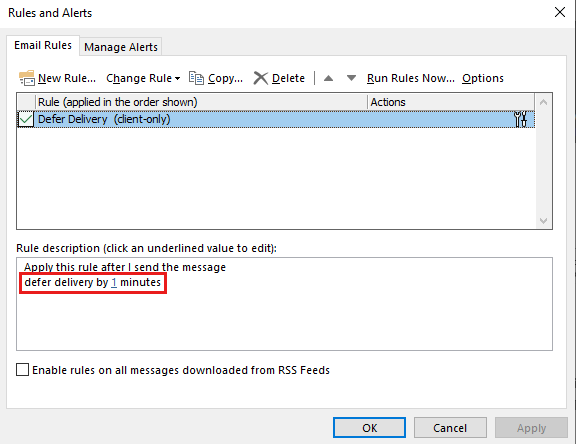
Three minutes tends to be the sweet spot — long enough to catch the missing attachment, short enough that nobody notices the lag.
Where Outlook keeps your scheduled emails
Every option to schedule email Outlook gives you parks the message somewhere until its send time, and that somewhere changes by version. It’s the most common “where did my email go” moment on this whole topic:
| Outlook version | Scheduled emails wait in | Needs your device turned on? |
|---|---|---|
| New Outlook (Windows) | Drafts | No |
| Outlook on the web | Drafts | No |
| Classic Outlook (Windows) | Outbox | Yes |
| Outlook for Mac | Drafts | No |
| Outlook mobile (iOS/Android) | Scheduled | No |
The folder is your tell. Drafts or Scheduled means Microsoft is holding the message for you. Outbox means your PC is.
And if it isn’t in any of those, check Sent Items. The delivery time has probably passed already and everything worked exactly as planned.
How to edit, reschedule, or cancel a scheduled email
When you schedule an email, nothing is locked in. You can rewrite the copy, move the time, release it early, or kill it entirely right up until delivery.
In the new Outlook, on the web and on Mac, simply open Drafts, find the message with the clock icon, and click the pencil (edit) icon. Change the wording, pick a new time, hit Send now, or delete it.
In classic Outlook, open the Outbox, double-click the message, and go back to Options → Delay Delivery. Change the date, or untick Do not deliver before to release it immediately. Click Close, then Send.
On mobile, simply open the Scheduled folder, tap the message, then edit or delete.
Schedule send Outlook problems and how to fix them
Schedule send Outlook problems almost always start with the option not showing up at all, and that comes down to one of three things, the first of which has no fix:
- You’re on an IMAP or POP account → Schedule Send only works with Microsoft 365, Exchange and Outlook.com accounts. Microsoft states this plainly in its own documentation, and there is no workaround. Connect a Gmail, Yahoo or custom-domain IMAP mailbox to the Outlook app and the option simply won’t appear.
- You’re on classic Outlook → the feature is there, but it’s called Delay Delivery, and it’s on the Options tab of the message window instead of next to Send. The message also stays in your Outbox until Outlook is open on your device.
- Your build is out of date → go to File → Office Account → Update Options → Update Now, then restart Outlook.
- The dropdown arrow won’t appear → a COM add-in is usually interfering, so disable them under File → Options → Add-ins, restart, and switch them back on one at a time.
- The attachment is too big → Microsoft 365 caps attachments at 25 MB and free Outlook.com accounts at 20 MB. Upload to OneDrive and paste a link instead.
What scheduling can’t fix
Scheduling controls when your email leaves, but of course, it has no say in where it lands. For anyone using Outlook schedule email send at real volume, whether that’s marketing or sales outreach campaigns, follow-up batches, or agency work across a dozen mailboxes, the real challenge is making sure those emails reach their designated inboxes.
A message timed perfectly for 8:00am Tuesday and arriving perfectly on time but filtered into Promotions or Spam is worth the same as no email at all. You optimized the one variable you could see and lost on the one you couldn’t. You can check whether someone read your email afterwards, but that still just tells you the outcome, not the reason.
If your domain is new, not properly authenticated, or has never sent at that volume, Outlook and other email providers will prevent your emails from landing in your recipients’ inboxes, also known as inbox placement.
And if a scheduled message keeps landing in Promotions or Spam, the copy is worth ruling out before the schedule — subject lines and body text can carry spam trigger words that get flagged by email providers:
Free Email Spam Checker
Paste your subject line and copy to see what a spam filter sees — every trigger word highlighted in place, scored, with the fix for each one. Nothing is uploaded; the analysis runs in your browser.
Your copy, with every trigger marked
What this score does and doesn’t tell you
Content is only part of why email goes to spam — and honestly, not the biggest part. This tool checks the part you control while writing.
- What it checks: trigger vocabulary, structure, formatting, links, personalisation and the patterns filters are trained on.
- What it can’t check: your sending domain’s reputation, whether SPF, DKIM and DMARC are set up, how warmed up the mailbox is, your bounce and complaint rates, and whether the recipient has engaged with you before. Those matter more than wording — a perfect email from a cold domain with no authentication still lands in spam.
- A single trigger word almost never gets you filtered. Modern filters score the whole message. Concentration is what hurts, which is why density is scored separately here.
- Clichés are scored gently on purpose. “Hope this email finds you well” won’t send you to spam — it will just get your email ignored, which costs you the same meeting.
Fix the infrastructure too
If your email is landing in spam despite clean copy, the cause is almost always authentication or reputation:
- Publish SPF, DKIM and DMARC on the sending domain. Google and Yahoo now require all three from bulk senders — without them you’re throttled or rejected before anyone reads a word.
- Warm up new domains and mailboxes over several weeks. A brand-new domain sending hundreds of cold emails on day one is the single fastest way to get blocked.
- Keep your bounce rate under 2–3% by verifying addresses before you send. High bounce rates tell providers you’re working from a scraped list.
- Keep complaints under 0.3%. One person hitting “report spam” costs you more than a hundred deletions.
- Send from a separate domain for cold outreach so a bad campaign can’t damage the reputation of the domain your invoices and support replies go out on.
Make sure your scheduled emails actually land
Sender reputation plays a huge part in determining your inbox placement, and it gets built the way credit does: gradually, through a consistent history of engaged sending. That’s the job email warm-up does, and that’s exactly what MailToaster automates.
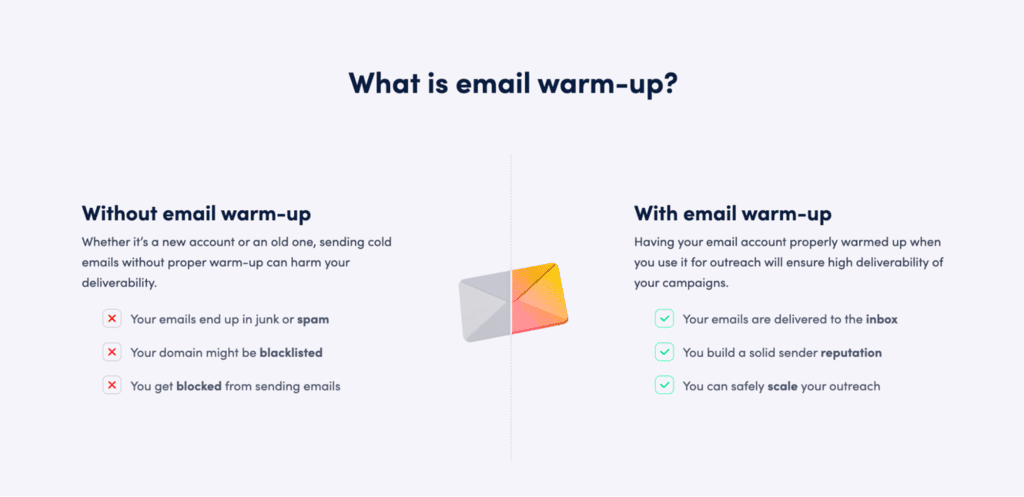
Connect your Outlook or Google Workspace account in a couple of clicks and MailToaster starts sending emails on your behalf across a peer-to-peer network of real inboxes, with no throwaway or temporary accounts involved. Those messages get opened, replied to, marked as important and pulled out of spam, which is exactly the engagement pattern email providers use to judge whether you’re a legitimate sender.
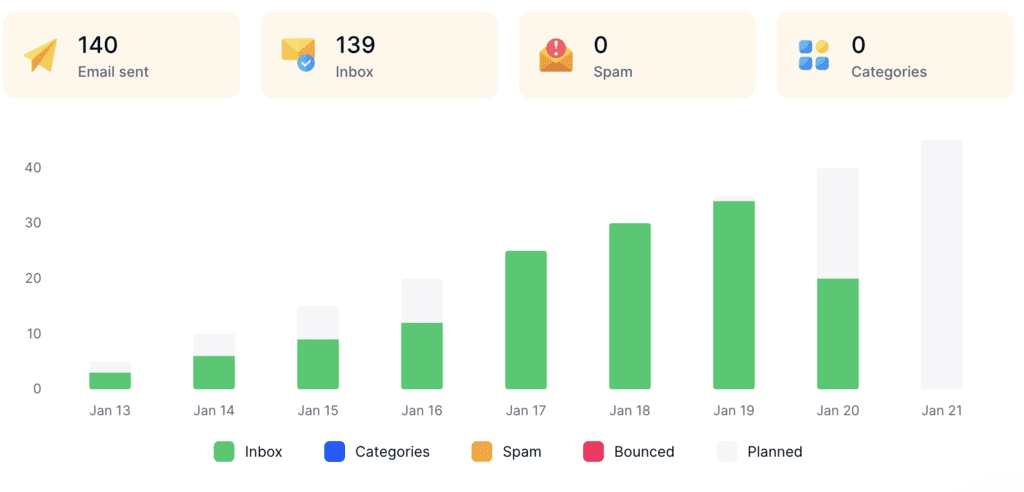
MailToaster’s DNS check validates your SPF, DKIM, and DMARC records automatically, since broken authentication is another very common reason a technically fine email gets filtered.
Pricing is just $29 per month, with a 7-day free trial.
Wrapping Up
Scheduling an email in Outlook takes about ten seconds once you know which version you’re in. Schedule Send next to the Send button in new Outlook, web, Mac and mobile, or Delay Delivery under the Options tab in classic. Let the folder tell you the rest — Drafts means it sends without you, while Outbox means your Outlook has to be running on your device.
Then go and check the part timing can’t help with. Warm up your sending domain and confirm your emails are actually reaching the inbox, because a perfectly scheduled email in the spam folder is still a missed email.
FAQ
How to schedule send an email in Outlook?
Click the arrow next to the Send button, select Schedule send, choose a suggested time or set a custom one, then click Send. The message waits in your Drafts folder and goes out automatically at the time you picked, whether or not your computer is on.
How to schedule an email in Outlook without the desktop app?
Sign in at outlook.com in any browser, compose your message, and use the same Schedule send arrow next to the Send button. The web version sends from Microsoft’s servers, which also makes it the fastest workaround when the desktop app’s dropdown is misbehaving.
Does a scheduled email send if Outlook is closed?
It depends on your version. In new Outlook, on the web, on Mac and on mobile, yes, because the message is queued on Microsoft’s servers and sends regardless. In classic Outlook for Windows, no. It waits in your Outbox until Outlook is open and connected.
How far in advance can I schedule an email in Outlook?
Up to about a year. Choose Custom time instead of one of the suggested slots, then pick any date and hour within roughly the next 12 months.
Can I schedule recurring emails in Outlook?
Not natively. Outlook can schedule a single message for a future time, but it has no built-in repeat function. Microsoft Power Automate or a third-party Outlook add-in will handle recurring sends if you need them.