

How To See If Someone Read Your Email (Outlook and Gmail)
You just hit send. The proposal, the follow-up, the thing that actually matters. Now you’re refreshing your inbox from time to time and wondering whether it was delivered, opened, and read. Most of us have been there, so here’s how to know if someone read your email.
In short, both Gmail and Outlook can tell you when someone opens your message, but neither can force them to confirm it. And if you’re on a personal @gmail.com address, the feature doesn’t exist for you at all — Google restricts read receipts to Workspace accounts, and only after an admin switches them on.
Below we’ll cover how to set them up on both platforms, what they actually prove, what other steps you can take, and what to do when nothing comes back.
How to see if someone read your email
Three methods, and only one of them is native to both platforms:
- Read receipts → a notification the recipient’s email provider sends back when they open your message. Gmail and Outlook both support them, but only the recipient decides whether it’s set up on their end.
- Delivery receipts → Outlook only. Confirms your message reached the recipient’s mail server, but ultimately says nothing about whether anyone looked at it.
- Tracking pixels → third-party tools that embed an invisible image. No consent required, no prompt shown, but also the least accurate of the three in 2026, for reasons we’ll get to shortly.
Availability at a glance:
| Platform | Read receipt | Delivery receipt | Mobile support |
|---|---|---|---|
| Gmail (personal @gmail.com) | ❌ Not available | ❌ Not available | ❌ |
| Gmail (Google Workspace) | ✅ Admin must enable | ❌ Not available | ❌ Desktop web only |
| Outlook classic (Windows) | ✅ Per-message + global default | ✅ | n/a |
| New Outlook / Outlook web | ✅ Per-message only | ✅ | ✅ |
One main constraint governs everything below: no method forces confirmation. A recipient who declines to set up read receipts, or whose email client ignores the request, leaves you with silence — the same silence you’d get if they never opened it.
After all, there are numerous reasons why an email may never reach the intended inbox, from a simple misspelt email address to triggered spam filters and email deliverability issues.
This is why if you’re doing consistent email outreach, domain warm-up with a tool like MailToaster is crucial to build and maintain a strong sender reputation, which makes recipients’ email providers much more likely to let your emails reach their inboxes.
What does “send read receipts” mean?
A read receipt is an automated notification sent back to you when a recipient opens your message. Your message carries a request, and their email program decides what to do with it. That decision point is where most receipts die.
This is also what separates a read receipt from a delivery receipt. Delivery receipts come from servers — they confirm your email reached the recipient’s mailbox and nothing more. Read receipts come from people, or at least from software acting on a person’s behalf.
Then there’s the main gap that few mention: opened isn’t read. Someone can trigger a receipt from a preview-pane glance, get pulled into a meeting, and never come back to your message.
Google says this outright in its admin documentation — it doesn’t recommend relying on read receipts to verify message delivery, since receipts can be sent for unread messages, and receipts for opened messages sometimes never arrive.
When you request one, most recipients see a prompt asking whether to send confirmation back. They can decline. Also, plenty of organizations configure a blanket “never send” policy, and their people never even see the prompt at all.
How to see if someone read your email on Gmail
First up, let’s take a closer look at the Gmail read receipt — how to set one up and see if someone read your email on Gmail.
Enable read receipts in the Google Admin console
Does Gmail have read receipts? Yes, but they’re off by default in Google Workspace, and only an administrator can turn them on.
If you’re on a personal Gmail account, you can skip this entirely — read receipts don’t work with personal @gmail.com addresses, and there’s no setting or workaround inside Gmail that changes that.
Here’s how to turn on read receipts for admins:
- Go to Admin console → Menu → Apps → Google Workspace → Gmail → User settings. You’ll need the Gmail Settings administrator privilege.
- Leave the top organizational unit selected to apply the setting company-wide, or pick a child OU to scope it to one team.
- Find the Email read receipts section and choose one of the policies below.
- Click Save.
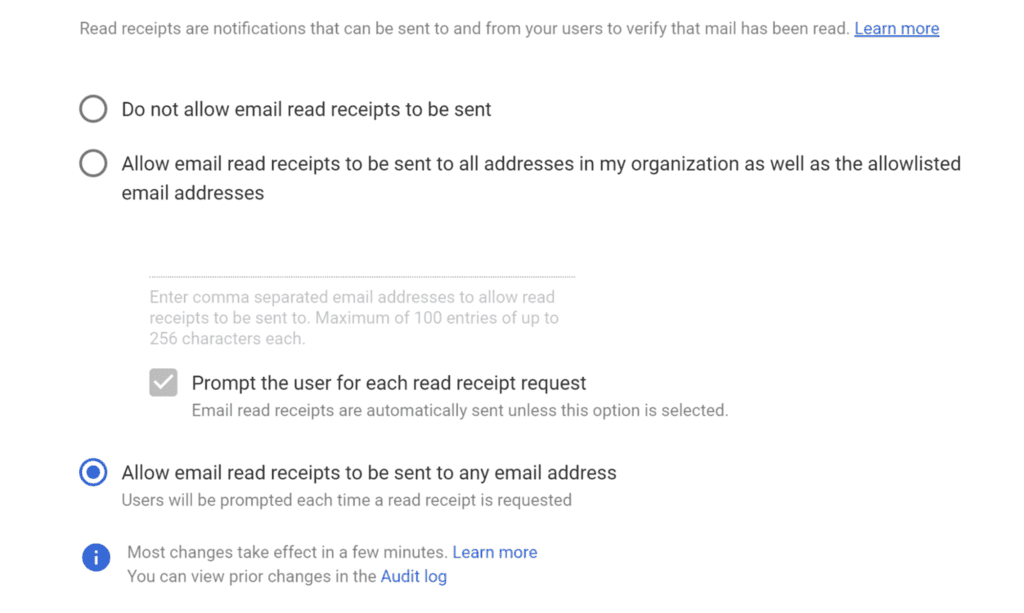
The three options do genuinely different things:
- Do not allow email read receipts to be sent → nobody in your org can send receipts to anyone.
- Allow email read receipts to be sent to all addresses in my organization as well as the allowlisted email addresses → limits receipts to your own domains plus specific external addresses you enter, up to 100 of them, comma-separated. There’s a sub-setting here worth understanding: Prompt the user for each read receipt request. Leave it unchecked, and receipts fire back automatically the moment a recipient opens the message, no approval needed.
- Allow email read receipts to be sent to any email address → opens it up internally and externally. Note the trade-off: selecting this force-enables the recipient prompt and greys it out, so every receipt requires approval.
Changes can take from a few minutes up to several hours to propagate, though in practice it’s usually faster.
How to add a read receipt in Gmail
Once your admin has enabled it:
- Click Compose and write your message as normal.
- Click the three-dot More options menu at the bottom-right of the compose window, next to the trash icon.
- Select Request read receipt.
- Send.
Two things trip people up here. First, it’s per-message only — Gmail has no global “always request a receipt” toggle for outgoing mail. Second, the option doesn’t exist in the Gmail mobile app, on iOS or Android. Desktop web only. This has been the case for years and shows no sign of changing.
If you don’t see the option at all, it’s one of three things: you’re on a personal account, your admin hasn’t enabled the feature, or your OU is excluded from the policy.
How to return a read receipt in Gmail
A read receipt in Gmail runs both ways. On the receiving end, you’ll get a prompt when you open a message carrying a request. You can approve it or decline it.
Behavior varies by client, though. A receipt might be sent automatically without any approval if the message was opened in an IMAP or POP client, and some non-IMAP mobile apps don’t support receipts at all. Worth knowing if you assume you’re always in control of what you send back.
One more limitation is that Gmail delivers receipts only to individual user accounts, not to groups or mailing lists. Send to a distribution address and you’ll get nothing back.
How to see if someone read your email on Outlook
When it comes to how to see if someone read your email, Outlook is more permissive than Gmail here. No admin gate, works on personal and business accounts, and receipts are available on mobile. The catch is version fragmentation — where the setting lives depends entirely on which Outlook you’re running.
Classic Outlook for Windows
For a single message:
- Click New Email.
- Compose it.
- Go to the Options tab on the ribbon.
- In the Tracking group, tick Request a Delivery Receipt, Request a Read Receipt, or both.
- Send.
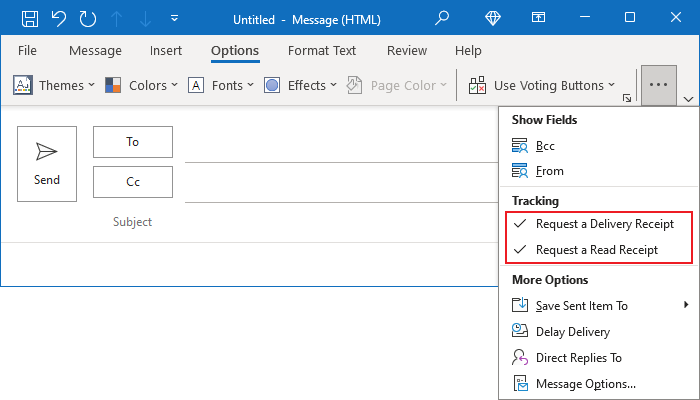
To check results, open the message from Sent Items and click Tracking on the ribbon. The button only appears once at least one receipt has come back.
New Outlook for Windows and Outlook on the web
- Open New Outlook or go to outlook.office.com.
- Click New mail.
- On the compose ribbon, click the Options tab, then Tracking.
- Select Request a read receipt and/or Request a delivery receipt.
- Send.
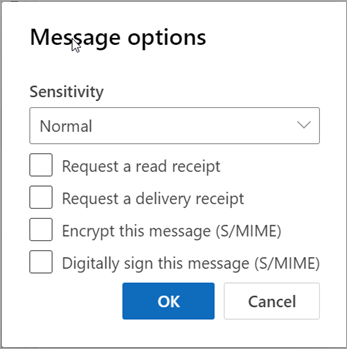
If the Options tab isn’t showing, check the three-dot More options menu in the compose toolbar — on some builds the toggles live there instead.
The thing that catches people migrating from classic: the global “request for all messages” default doesn’t exist in new Outlook or Outlook on the web. Per-message only.
Controlling how you respond to receipt requests
You can decide once how Outlook handles incoming requests.
In new Outlook and Outlook on the web: Settings → Mail → Message handling, then under Read receipts pick always send, never send, or ask each time.
In classic Outlook: File → Options → Mail → Tracking, then set your preference under “For any message received that includes a read receipt request”.
This governs incoming requests only. It has no effect on what you request from others.
Why read receipts fail (and what senders get wrong)
If you’ve set everything up correctly and receipts still aren’t coming back, here’s the list, with the mechanism behind each, because the mechanism tells you whether it’s fixable:
- The recipient declined → Nothing to fix. Many people configure permanent auto-decline and never think about it again.
- Their client doesn’t support the request → Read receipts rely on an optional email standard. Plenty of clients ignore it silently.
- Their organization strips outgoing receipts at the policy level → Common in enterprise and anywhere with a compliance team.
- You sent to a group, alias, or distribution list → Returns nothing on either platform.
- You can’t add a receipt retroactively → The request is set before you hit send, and there’s no way to attach one afterward.
Which brings us to the honest summary: there is no way to force a read receipt. Inside your own company, where colleagues have no particular reason to decline, receipts work reasonably well.
On cold outreach, where the recipient doesn’t know you, didn’t ask to hear from you, and has every incentive to click “no”, a receipt request is close to useless. Worse, it announces that you’re watching.
This is exactly why sales teams use special outreach software like Reply.io or reach for tracking pixels instead. Which solves the consent problem and creates two new ones.
Do tracking pixels work better than read receipts?
A tracking pixel is a tiny 1×1 invisible image hosted on a tracking server. When the email loads, so does the image, and the server records an “open.” No prompt, no consent, no option to decline. On paper, it sounds like the obvious upgrade. In 2026, though, most of that data is noise.
Apple pretty much broke open tracking back in 2021. Mail Privacy Protection can pre-load the pixel as soon as an email reaches Apple Mail, regardless of whether the recipient ever reads it.
Depending on your list, that can inflate open rates by 15–35%, and Apple Mail now accounts for roughly half of global opens according to Litmus. Then you have corporate security scanners creating more fake opens, while image blockers hide some real ones. So the same metric is being inflated and undercounted at the same time, and there’s no reliable way to know by how much.
There’s also the deliverability side, which teams often overlook. A tracking pixel adds HTML and a third-party request to what is supposed to look like a personal email. Shared tracking domains tie your sender reputation to other users, while rewritten links can look suspicious to secure email gateways. If you still track opens, use a custom tracking domain and treat the data as a rough infrastructure signal, nothing more.
Read receipts confirm opens. Deliverability decides if there’s anything to open.
Every method in this article follows one key assumption: that your email reached the inbox.
A message sitting in spam produces no read receipt, no open, and no pixel fire. It looks identical to being ignored, and that’s the trap. Teams read the silence as disinterest, rewrite their subject lines, tighten their value prop, and test three new CTAs, or simply give up, all while the actual problem sits upstream in their sender reputation.
You can’t track your way out of an inbox placement problem. Before you strategize how to see if someone has read your email, you have to confirm your emails are reaching your recipients’ inboxes in the first place, especially if you’re doing mass outreach.
How MailToaster protects Gmail and Outlook sending
Sender reputation is the variable everything else depends on. It’s built gradually, damaged quickly, and painful to repair — which is why warm-up isn’t a random task you check off, it’s ongoing infrastructure.
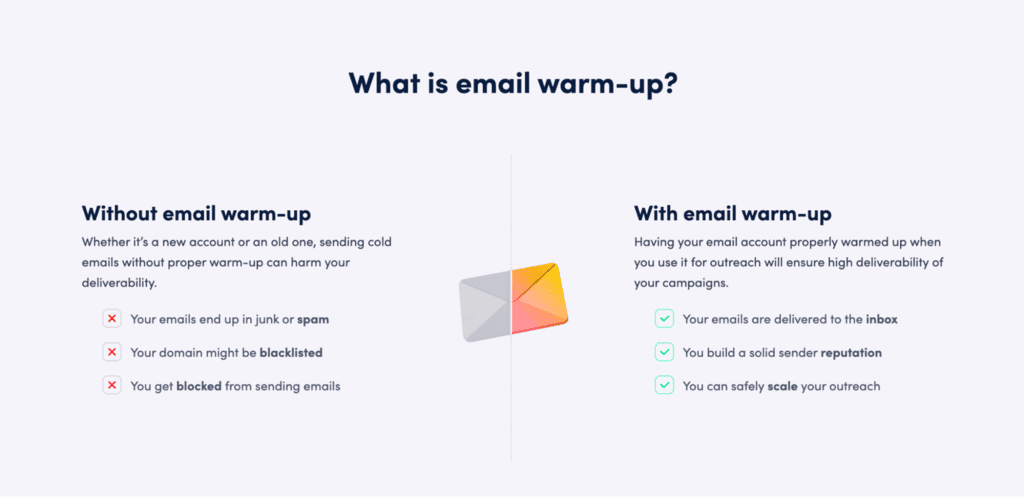
MailToaster handles that entire layer for both Gmail and Outlook:
- Works with GSuite, Outlook, and other providers → No switching, no migration.
- A trusted network of real inboxes → Peer-to-peer sending only, no free or temporary accounts, so the warm-up traffic looks like legit traffic, because it is.
- Realistic positive engagement → The system opens your emails, replies to them, marks them important, and pulls them out of spam.
- Two profiles for two jobs → *New Email Account* builds your sender reputation from zero, and *Reputation Protect* maintains an established account and repairs damage after a damaged domain.
- Automatic DNS validation → SPF, DKIM, DMARC and related records checked automatically, which is the authentication layer no read receipt can compensate for.
- Reports that measure placement, not vanity → Emails sent, landed in inbox, landed in spam, sorted into categories, bounced. That’s the data that tells you whether tracking is even worth turning on.
Setup takes just a few clicks and no technical skills, there’s a 7-day free trial to see it in action, and if bounce rates are already causing you problems, email warm-up is definitely the place to start.
Stop guessing, start landing
Read receipts work inside Workspace and Outlook when the recipient cooperates. In 2026, tracking pixels tell you more about Apple’s proxy servers than about your prospect. Replies remain the only signal that survives 2026’s privacy layers intact.
But all of it assumes your email reached its intended inbox. So before you optimize for how to tell if someone read your email, first make sure you’re landing in the inbox. Start with MailToaster’s free trial to warm up your email domain, build a strong sender reputation, and increase inbox placement rates.
FAQ
Does Gmail have read receipts?
Yes, but only on Google Workspace accounts, and only after an administrator enables the feature. Personal @gmail.com addresses can’t request or return them.
How do I know if someone read my email without a read receipt?
Third-party tracking tools embed a pixel that fires when your email renders. It works without consent, but Apple’s Mail Privacy Protection and corporate security scanners produce false opens at scale, so treat the number as directional at best.
Can you request a read receipt after sending?
No. The request has to be set before you hit send, on both Gmail and Outlook. There’s no retroactive option.
Why am I not getting read receipts in Outlook?
Usually the recipient declined, their client doesn’t support receipts, their organization blocks outgoing receipts, or you sent to a group address rather than an individual.
Does a read receipt mean they actually read it?
No. It confirms the message was opened. A preview-pane open counts, and Google’s own documentation warns that receipts can fire on unread messages.