

Outlook SMTP Settings: How to Set Up Outgoing Mail Correctly
You’ve typed the server name, set the port, hit test, and it failed, again.
Here’s the short version, because it’s usually one of two answers. Personal Outlook.com addresses send through smtp-mail.outlook.com. Microsoft 365 business accounts send through smtp.office365.com. Both use port 587 with STARTTLS, but mixing those two up is the most common reason a setup fails.
Below are the full Outlook SMTP settings for both account types, how to configure them in any mail client, and the authentication changes that have quietly made a lot of older, outdated advice wrong.
Outlook SMTP settings at a glance
This is the block most people came for:
| Outlook.com (personal) | Microsoft 365 (business) | |
|---|---|---|
| Applies to | outlook.com, hotmail.com, live.com, msn.com | your own domain on a Microsoft 365 tenant |
| SMTP server | smtp-mail.outlook.com | smtp.office365.com |
| SMTP port | 587 | 587 |
| Encryption | STARTTLS | STARTTLS (TLS 1.2 or 1.3) |
| Authentication | OAuth2 / Modern Auth | OAuth2 preferred, basic auth deprecating |
| IMAP server | outlook.office365.com, port 993, SSL/TLS | outlook.office365.com, port 993, SSL/TLS |
| POP server | outlook.office365.com, port 995, SSL/TLS | outlook.office365.com, port 995, SSL/TLS |
Look closely at that table and you’ll spot the thing that causes most of the confusion. The outgoing servers are different for the two account types, but the incoming server is outlook.office365.com for both. So a Hotmail address receives mail through a server with “office365” in the name while sending through a completely different one, which is exactly the kind of inconsistency that makes people assume they’ve made a typo.
It also explains a widespread error. Several well-ranked guides tell you to use smtp.office365.com for Outlook.com, Hotmail, Live and MSN addresses. Microsoft’s own documentation says otherwise, and if you use those Outlook SMTP server settings on a personal account, it simply will not connect.
Outlook 365 SMTP settings vs personal Outlook.com
Outlook.com is Microsoft’s consumer mail service, while Microsoft 365 runs on Exchange Online, a business platform with tenant-level administration sitting on top of it.
Working out which you have takes a second — if your address ends in outlook.com, hotmail.com, live.com or msn.com, it’s personal. If it’s your own domain and someone at your company set it up, it’s almost certainly Microsoft 365.
Each side has a setting that ships turned off, and both of them produce the same symptom: correct configuration, failed connection.
On Outlook.com, POP and IMAP access are disabled by default. Turn them on under Settings, then Mail, then Forwarding and IMAP.
On Microsoft 365, SMTP AUTH is disabled by default on many tenants, and it’s set per mailbox. No amount of correcting the SMTP settings Outlook is asking for will fix this, because the mailbox isn’t allowed to authenticate for SMTP in the first place. A tenant admin has to enable it, either in the Microsoft 365 admin center or with PowerShell.
Is SMTP port 25, 587, or 465?
Port 587. For every Outlook account type, in every client.
The other two exist for reasons worth knowing, mostly so you can recognise bad advice when you see it:
| Port | What it’s for | Use with Outlook? |
|---|---|---|
| 25 | Server-to-server relay between mail servers | No. Widely blocked by ISPs and hosting providers to limit spam |
| 587 | Authenticated client submission, defined in RFC 6409 | Yes. The only supported option |
| 465 | Implicit TLS submission | No. Microsoft doesn’t support it for Outlook |
Port 25 gets blocked because it was never meant for you. It handles traffic between mail servers and carries no authentication requirement, which made it the default route for anyone sending bulk mail from a compromised machine.
RFC 6409 introduced 587 specifically to separate authenticated submission from that relay traffic. Port 465 has a much stranger history: IANA revoked it in 1998, then RFC 8314 reinstated it in 2018 for implicit TLS. Plenty of providers support it, but Microsoft isn’t one of them.
One more thing your client will ask about — choose STARTTLS, not SSL/TLS. On port 587 the connection opens unencrypted and upgrades to TLS before your credentials are sent, which is what STARTTLS describes. Some ranking guides tell you to pick SSL/TLS in the dropdown. On this port, that’s wrong.
How to configure SMTP for Outlook in your email client
The exact menus differ between Thunderbird, Apple Mail, a WordPress plugin and a CRM, so the sequence below is deliberately generic, and a click path with screenshots would be out of date in six months:
- Work out your account type, then take the matching server name from the table above.
- Enter it as the outgoing server, with port 587.
- Set encryption to STARTTLS.
- Tick the option that says your outgoing server requires authentication.
- Choose OAuth or Modern Auth if your tool offers it. If it only accepts a username and password, you’ll need an app password rather than your account password.
- Send a test message before you connect anything real to it.
Step 5 is where most setups fail, and the next section explains why.
How to change SMTP settings in Outlook itself
Editing an existing account inside the Outlook desktop app is a different job from configuring a third-party client. In classic Outlook, go to File → Account Settings → Account Settings, select the account, choose Change, then More Settings. The Outgoing Server tab holds the authentication checkbox and the Advanced tab holds the port and encryption fields.
New Outlook for Windows handles this differently and gives you far less to edit, since it manages sync through Microsoft’s own infrastructure rather than exposing raw SMTP settings for Outlook accounts. If you need manual control there, classic Outlook or a third-party client is the way to get it.
The authentication change that breaks most SMTP guides
Server, port, password. That combination is how SMTP worked for thirty years, and it’s the combination most guides still describe. It’s also disappearing.
For personal accounts, it’s already gone. Microsoft ended basic authentication for Outlook.com on 16 September 2024. Apps that ask only for your username and password can no longer connect, which is why an app that worked fine two years ago now fails with credentials you know are correct. Your options are OAuth2, or an app password for devices that genuinely can’t handle OAuth.
Business accounts are further behind, on a timeline that keeps moving. Microsoft published a revised schedule on 27 January 2026:
- SMTP AUTH basic authentication behaviour stays unchanged through December 2026
- At the end of December 2026, it gets disabled by default for existing tenants, though admins can still switch it back on
- Tenants created after that date won’t have it available at all
- A final removal date is due to be announced in the second half of 2027
That schedule has already slipped twice, as it was originally September 2025, then 30 April 2026, now this. Read that however you like in terms of urgency, but the direction hasn’t changed once. If your tool supports OAuth, use it now. If it only does basic auth, you’re working against the clock, and the SMTP Outlook settings in most older tutorials are describing a setup with a known end date.
Why your Outlook SMTP settings still aren’t working
Ordered by how often each turns out to be the actual cause, rather than how obvious it looks:
- SMTP AUTH is disabled on the mailbox → Microsoft 365 only, needs an admin. Check this first on business accounts.
- Wrong server for the account type → the Hotmail address pointed at smtp.office365.com problem.
- Basic auth on a personal account → dead since September 2024. Switch to OAuth or generate an app password.
- Port 25 blocked upstream → your ISP or host, not Outlook. Move to 587.
- Encryption set to SSL/TLS instead of STARTTLS → right port, wrong handshake.
- You’re being throttled, not rejected → sends succeed and then stop. That’s a limit, not a configuration fault, and correcting your Outlook email SMTP settings won’t touch it.
Sending limits, and why correct settings don’t mean delivered mail
Microsoft 365 caps client submission at 30 messages per minute and 10,000 recipients per day. Outreach tools hit the per-minute ceiling long before the daily one, and when they do, the error usually looks like a connection failure, which sends people back to re-check settings that were never wrong.
Your Outlook SMTP settings determine whether Microsoft’s server accepts your message. They say nothing whatsoever about which folder it lands in. A perfectly configured account can show 100% delivery and still put 40% of its mail in spam, and nothing in any settings dialog will tell you that’s happening or why.
What decides the folder is authentication records, domain reputation and engagement history. Microsoft has been explicit about the first one: since 5 May 2025, anyone sending more than 5,000 messages a day to Outlook.com, Hotmail.com or Live.com must have SPF, DKIM and DMARC in place, and mail that fails is rejected outright with 550 5.7.15 Access denied rather than filed into junk.
Settings get the message accepted. DMARC is what stops it being rejected at the door. If you don’t have a record yet, the safe starting point is p=none with reporting switched on, so you can see who’s sending as your domain before you enforce anything — build it here and paste the result into DNS:
Free DMARC Record Generator
Build a valid DMARC record in seconds. Pick a rollout preset or customize every tag — we’ll validate as you type.
What is DMARC and how should I roll it out?
DMARC tells receiving mail servers what to do with messages from your domain that fail SPF or DKIM checks — and where to send reports about those failures. It’s the third leg of email auth (SPF + DKIM + DMARC).
The recommended rollout is a slow ramp:
- Monitor (
p=none) for 1–2 weeks. No mail is blocked. You collect reports to find every legitimate sender. - Quarantine a small percentage (
pct=10), then 50%, then 100%. Failing mail goes to spam. - Reject at the same gradual percentages. Failing mail is bounced at the SMTP layer.
You publish DMARC at _dmarc.yourdomain.com as a TXT record (not at the apex like SPF).
Advanced settings (forensic reports, alignment, subdomain policy)
Your DMARC record
_dmarcHow to publish this record
- Sign in to your DNS provider (Cloudflare, GoDaddy, Namecheap, Route 53, etc.).
- Add a new record with: Type =
TXT, Host/Name =_dmarc, Value = the DMARC record above. - If a TXT record already exists at
_dmarc, replace it — only one DMARC record per domain. - Save. Verify with
dig TXT _dmarc.yourdomain.comor any DMARC checker. - If you set
rua, expect XML aggregate reports within 24 hours from major providers.
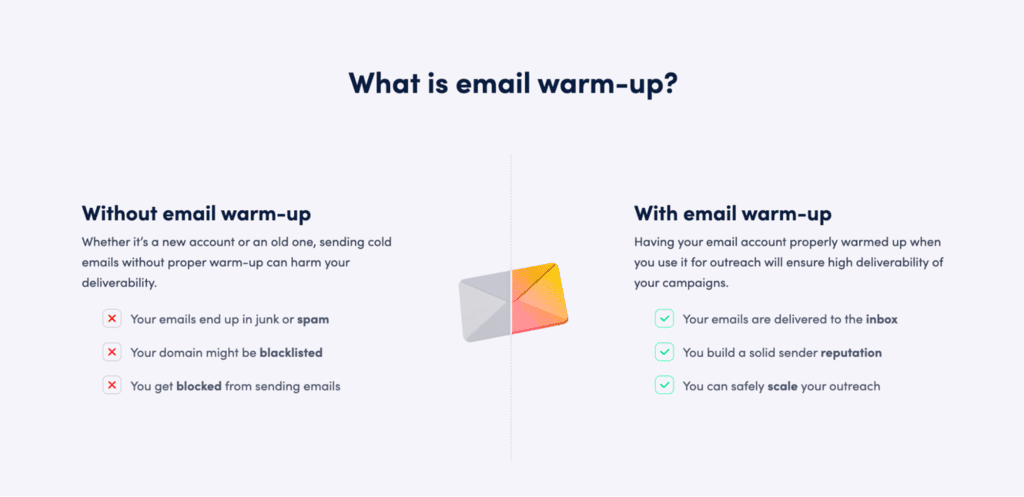
Your sender reputation is the harder half, because it’s not something you can just configure. You have to build it, which is what email warm-up is designed for.
Email warm-up with MailToaster
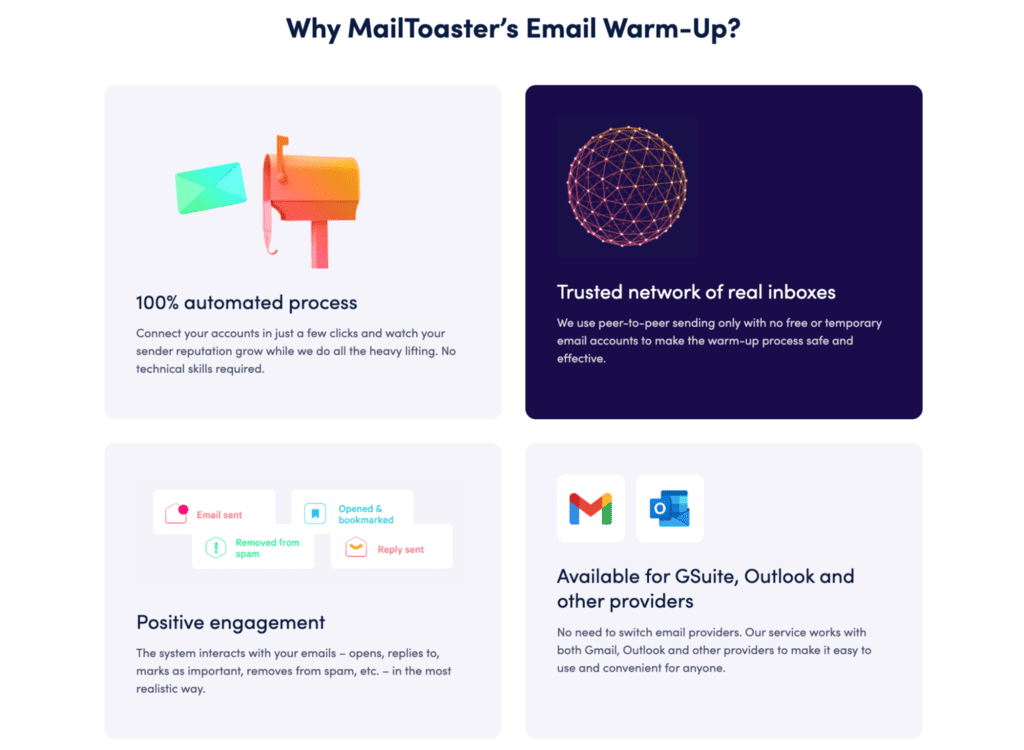
MailToaster is an email warm-up tool that connects over the same Outlook and Gmail paths described above, so there’s no provider to switch and nothing new to configure, and then gradually increases your sending volume with positive engagement signals.
First, pick a profile depending on where you are: New Email Account to build reputation on a fresh domain, or Reputation Protect to maintain or repair one that’s already sending.
From there, it runs through a peer-to-peer network of real inboxes that open your messages, reply to them, mark them as important, and pull them out of spam when they land there. This is exactly the kind of positive engagement that makes email providers like Outlook see that your domain is trustworthy and legitimate.
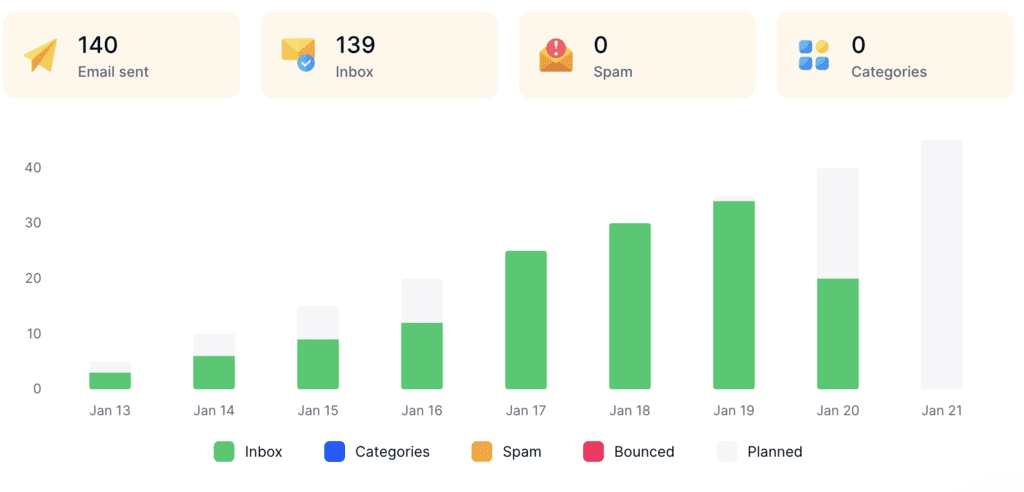
It also checks your SPF, DKIM and DMARC records automatically, which is the same authentication thread running through this entire article, and reports what share of your mail is actually reaching the inbox so you can monitor your inbox placement in real time.
Plans start at $29 per account per month with a 7-day free trial.
Wrapping up
The settings themselves are two lines long and they haven’t changed in years. What changes, and what will break your setup, is the authentication method sitting behind them. So check whether SMTP AUTH is enabled on the mailbox before you debug anything else, match the server to your account type, and choose OAuth wherever your tooling supports it. Any guide that treats Outlook as a single product will get you the wrong server half the time.
Then remember that all of this only gets your mail accepted. Getting it into the inbox is a separate problem with a separate solution. Start warming up your Outlook account with MailToaster’s 7-day free trial to build your email sender reputation right away.
FAQ
What is the correct SMTP server for Outlook?
smtp-mail.outlook.com for personal Outlook.com, Hotmail, Live and MSN addresses. smtp.office365.com for Microsoft 365 business accounts. Both run on port 587 with STARTTLS.
Can I still use my regular Outlook password for SMTP?
Not on a personal account. Basic authentication ended for Outlook.com on 16 September 2024. Business accounts can still use it for now, but it gets disabled by default for existing tenants at the end of December 2026.
Do I need an app password, and are app passwords going away?
You need one if your app can’t do OAuth2, which covers a lot of older clients and smart devices. OAuth is the direction Microsoft is pushing everything toward, so treat app passwords as a fallback rather than a default.
How many emails can I send through Outlook SMTP per day?
Microsoft 365 allows 10,000 recipients per day, throttled to 30 messages per minute. The per-minute limit is the one most sending tools run into first.
Why does my SMTP connection fail with the correct settings?
On business accounts, usually because SMTP AUTH is disabled on that mailbox and an admin needs to enable it. On personal accounts, usually because the app is attempting basic authentication.
Are the SMTP settings the same for the Outlook desktop app and Outlook.com?
They depend on the account, not the app. A personal address uses smtp-mail.outlook.com whether you open it in the desktop app, a browser or Thunderbird. The setup for Gmail SMTP follows the same logic with different server names.