

How to Send Large Files via Email (And Make Sure It Goes Smoothly!)
You attach the file, the progress bar crawls to 100%, and your email client tells you it’s too large. Or worse, it sends fine and then bounces back twenty minutes later with a server error you can’t decode. Ever been in that situation?
Most guides on how to send large files via email give you the same three answers: use cloud storage, zip it, or use a transfer service. Those work, but they also skip the parts that actually cause the failures in the first place.
This article covers why the attachment limits are smaller than providers advertise, five methods ranked by the file size each handles, and how to stop the email itself from becoming the problem.
Why you can’t just email large files
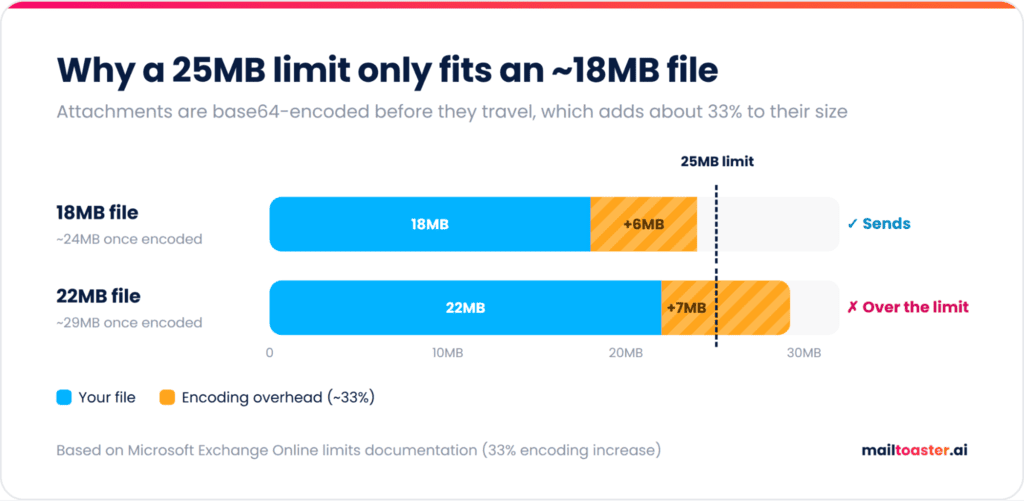
Most email providers cap attachments somewhere between 20MB and 25MB, and the file you can realistically send is about a third smaller than the number they advertise.
Here’s why.
Email was never designed to carry binary data. SMTP moves text, so every attachment gets base64-encoded into text before it travels, and that encoding inflates the file by roughly 33%.
Microsoft documents this openly in its Exchange Online limits, saying that messages routed outside its datacenters are “subject to an additional 33% translation encoding increase”, which is why a 150MB internal ceiling becomes 112MB for external mail. Outlook on the web goes a step further and restricts what you can send to 25% below the configured limit, purely to leave room for the encoding.
In practice, that means a 25MB cap is closer to an 18MB file, and a 20MB cap is closer to a 15MB one.
The second thing to know is that sending limits and receiving limits are separate settings on different servers. Your provider accepting a 20MB attachment tells you nothing about whether your recipient’s one will, and corporate Microsoft 365 or Google Workspace tenants often sit well below the consumer default.
| Provider | Advertised limit | Realistic file size after encoding | Built-in handoff for big files |
|---|---|---|---|
| Gmail (personal) | 25MB | \~18MB | Auto-swaps to a Google Drive link |
| Google Workspace | Set by admin, 25MB default | \~18MB | Google Drive link |
| Outlook.com | 20MB | \~15MB | OneDrive upload prompt |
| Microsoft 365 / Exchange Online | 150MB internal, 112MB external | Encoding already accounted for | OneDrive or SharePoint link |
| Yahoo Mail | 25MB | \~18MB | None built in |
| iCloud Mail | 20MB | \~15MB | Mail Drop, up to 5GB |
| Proton Mail | 25MB | \~18MB | Proton Drive link |
Size limits only decide whether the recipient’s server accepts your email. Once your message is under every ceiling, that same server makes a second call on whether it goes to the inbox or to spam, and the file has very little to do with it.
That call comes down to your authentication records and your sender reputation, which is why an attachment that fits every limit can still land in spam when it comes from a new, rarely used, or blacklisted domain.
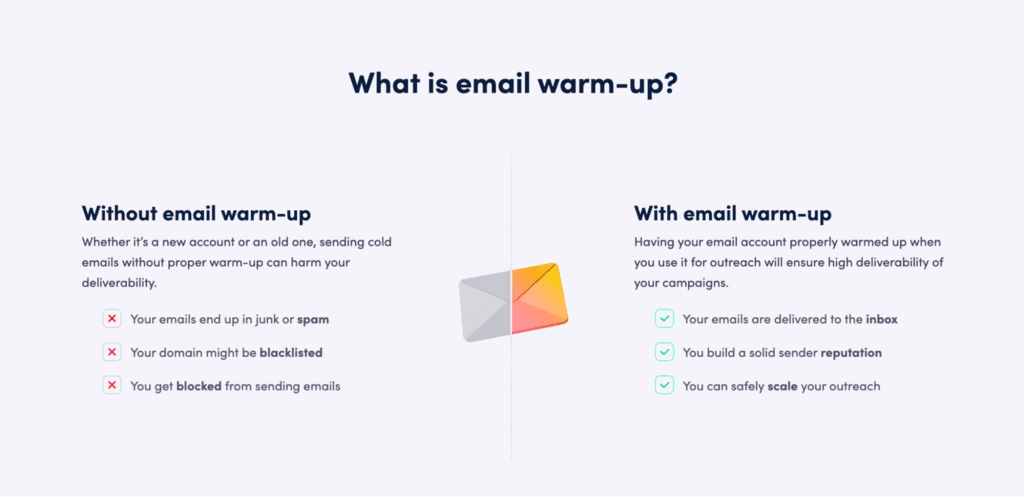
That’s where an email deliverability tool like MailToaster helps. It warms up your Gmail, Outlook, or other mailbox across a peer-to-peer network of real inboxes that open your emails, reply to them and pull them out of spam. It also checks your SPF, DKIM, and DMARC records automatically, so the file you worked to get under the limit actually reaches the inbox.
How to send large files via email: 5 methods that work
The right method comes down to how big your file is and whether your recipient should have to create an account to open it. Work down this list and stop at the first one that fits:
1\. Share a cloud storage link (best for almost everyone)
For most people asking how to send a large file via email, this is the answer, and for good reason. You upload once, the file lives in one place, and you can revoke access later, which you can never do with an attachment sitting in someone’s inbox forever.
- Upload the file to Google Drive, OneDrive, or Dropbox.
- Right-click the file and choose Share, or Copy link.
- Set the access level before you copy anything. “Anyone with the link” for external recipients, named people only for anything confidential.
- Paste the link into your email and say what it is, what format it’s in, and roughly how large.
- Add an expiry date if the platform offers one.
Step 3 is where this goes wrong, and it catches people constantly. A link copied at the default permission on a corporate Google Workspace account is usually restricted to your organization, so your recipient clicks through and still lands on a “Request access” screen.
Storage you most likely already have includes 15GB free across Google Drive, Gmail, and Photos, 5GB with OneDrive, and 2GB with Dropbox.
2\. Let your provider hand it off for you
There’s a much lazier answer to how to send a large file through email — attach it anyway and just let your provider deal with it.
- Gmail → attach anything over 25MB and, according to Google’s own documentation, Gmail removes the attachment and adds it as a Google Drive link in the email. You don’t upload anything manually.
- Outlook → attaching an oversized file prompts you to upload it to OneDrive and send the link instead. In Microsoft 365 environments you can also save to a SharePoint library and share from there.
- Apple Mail → Mail Drop carries attachments up to 5GB. Apple gives recipients 30 days to download them and caps cumulative Mail Drop storage at 1TB, with space freeing up as older files expire.
These handoffs save you a trip to the browser tab, but the recipient still clicks a link on a cloud domain, so everything in the deliverability section below applies.
3\. Compress the file
Zipping is the old-school method, and it’s also the one that most often disappoints, because whether it helps depends on what you’re compressing in the first place.
CSVs, spreadsheets, text, XML and JSON exports, raw design files, uncompressed WAV audio, and folders full of documents all compress well, and savings of 50% to 90% are normal. JPEG, PNG, MP4, MOV, MP3, and most PDFs barely move, because those formats are already compressed, so zipping them buys you a couple of percent at best.
Compression is a genuine answer for how to send large files through email when you’re dealing with documents and data. For media files, it mostly wastes a few minutes.
4\. Use a file transfer service
Transfer services exist for one-off sends to people outside your organization who shouldn’t need an account or a permissions conversation. They take your file, give you a link, and expire it after a set period.
WeTransfer’s free tier covers up to 10 transfers or 3GB total in any rolling 30-day window, while Smash, Filemail, and Dropbox Transfer cover similar ground with different caps.
This method is best for those cases when the recipient is a client or a contractor who will open the file once and never think about it again. Skip it when the file is something you’ll both reference for later down the line, because an expired link is a support ticket you just created for yourself. For that, a shared cloud folder wins.
5\. How to email large video files
Link it.
Video is the one file type where attaching is almost never realistic, because a three-minute 4K clip clears every limit in the table above by a wide margin.
If you genuinely need the file smaller, re-encode it instead of zipping it:
- Export to H.264 at 1080p. For most business use, 4K is resolution nobody is going to watch on the first pass anyway.
- Drop the bitrate before you drop the resolution. Around 8 Mbps at 1080p still looks clean for a screen recording or a product demo.
- Trim the dead air at the start and end, which is often 10% to 20% of a raw recording.
- HandBrake is free on Mac, Windows, and Linux and handles all of this in a few clicks.
For anything longer than about two minutes, uploading to Drive, Dropbox, or an unlisted YouTube or Loom link is the real answer to how to email large video files. It’s also better for the recipient, who streams it instead of downloading a gigabyte first.
| Method | Practical max size | Recipient needs an account? | Best for |
|---|---|---|---|
| Cloud storage link | 15GB free, more on paid plans | No, if link access is set correctly | Almost everything, especially files you’ll both reference again |
| Provider handoff | 5GB via Mail Drop, 15GB+ via Drive | No | Speed, when you don’t want to leave your inbox |
| Zip compression | Gets you under 20-25MB, or it doesn’t | No | Documents, data exports, folders of files |
| Transfer service | 3GB free on WeTransfer, up to 1TB paid | No | One-off sends to clients and external contacts |
| Re-encoding | Depends entirely on the source file | No | Video and image-heavy files |
Before you hit send: the checks that stop a bounce
Picking the method is most of how to send large files over email, but a file that fits your own limit can still bounce, get stripped in transit, or arrive as something the recipient can’t open. Four checks take a minute and prevent most of it.
- Check their ceiling, not just yours: Receiving limits are set per organization, and a Microsoft 365 tenant or Google Workspace domain can be configured well below the consumer default. If you know which platform a recipient’s domain runs on, you know roughly which set of limits you’re sending into. That’s readable from the domain’s MX records, which point to whoever handles their mail. Check the recipient’s domain below and you’ll know in a few seconds whether you’re sending into Google Workspace, Microsoft 365, or a self-hosted server with rules of its own.
Free MX Record Checker
See exactly which servers receive email for any domain, in the order senders try them — plus every address they resolve to and the platform behind them.
What are MX records?
MX (Mail Exchanger) records tell the internet where to deliver email for your domain. When someone emails [email protected], their server looks up your MX records and connects to the host with the lowest priority number first, falling back to the next one if it’s unreachable.
- Priority is a preference, not a ranking of quality. Lower wins. Equal numbers means random distribution across those hosts.
- MX targets must be hostnames with A/AAAA records — never a bare IP address, and (per RFC 2181) never a CNAME alias.
- No MX record means no inbound mail. A few senders fall back to the domain’s A record, but that behaviour is legacy and unreliable.
This tool also reports whether SPF and DMARC exist on the domain, since those govern outbound mail and are just as load-bearing for deliverability.
Common MX problems and how to fix them
- Mail bounces with “no route to host”. Usually an MX hostname that no longer resolves — a provider you left, or a typo. Remove stale records.
- You changed provider but old mail still arrives at the old one. Both sets of MX records are probably still published. Delete the old ones and lower the TTL before the next migration.
- Only one MX host. Add the backup hosts your provider documents. Google Workspace and Microsoft 365 both accept a single record now, but most other platforms still expect several.
- MX points at a CNAME. Replace the alias with the real hostname, or create an A record with the same name.
- You’re sending cold outreach from this domain. Make sure replies actually land somewhere a human reads — MX pointing at a mailbox nobody monitors is the quiet killer of reply rates.
- Watch for blocked file types: Size isn’t the only wall — Gmail blocks roughly 50 extensions outright, including .exe, .js, .jar, .msi, .iso, .bat and .vbs, and Google’s documentation is explicit that the block applies across compressed form like .gz, inside archives like .zip, and inside password-protected archives too. Zipping an installer doesn’t sneak it past anything, so instead just share it as a link.
- Bundle attachments into one file: Multiple attachments count together against the limit, and a wall of them is harder to scan, besides the fact that it’s more likely to get flagged. Zip them into one clearly named archive, or drop them in a single shared folder.
- Name the file like a human: *Q3_Proposal_Acme.pdf* tells the recipient what they’re opening before they click. *final_v7_REALFINAL(2).pdf* tells them nothing and reads as careless on a first impression.
One more thing if you send files as part of outreach at volume, whether that’s proposals going out through sequences in a tool like Reply.io or assets across a dozen client mailboxes. Moving from an attachment to a link solves the size problem completely, but it does nothing for the delivery problem.
Whether the email reaches the inbox at all comes down to your sender reputation.
How to send large files via email without hurting deliverability
The file itself isn’t what gets you filtered by email providers, but the pattern sure does.
Attachments and file-sharing links are two of the most heavily abused carriers in phishing, so filters weigh both of them. You can still use both, of course, but the same Google Drive link just behaves completely differently depending on who’s sending it: from a colleague you email every week, it sails through with zero friction, while from an unfamiliar address on a domain with no sending history, it looks a lot like the thing those filters are trained to catch.
Three things decide which of those you look like:
- Your sender reputation, built from your domain and IP history and how recipients have treated your mail over time.
- Your authentication setup, meaning SPF, DKIM, and DMARC records that confirm you are who your envelope says you are.
- Engagement, which covers opens, replies, and whether people pull your mail out of spam or push it in.
The file itself is a rounding error next to those three. Send an identical email from a warmed domain with clean authentication and from a two-week-old domain with none, and you get two different outcomes with the same attachment.
So here are three rules for when you’re working out how to send large files over email at any real scale:
- One link, not five → A message with a single, clearly labeled link reads as normal business correspondence. A message with five reads as a distribution blast.
- Skip URL shorteners → Bit.ly-style links hide the destination, which is exactly why phishing uses them and why filters distrust them. Paste the real URL.
- Keep the copy around the link plain and specific → “Here’s the Q3 deck, 14 slides, PDF” is fine. Urgency language, all-caps, and other spam keywords to click are the patterns that trip content filters, and they’re worth avoiding even when the link is completely legitimate.
If your emails are already landing in Promotions or spam, none of the methods in this article change that, because what you have is an inbox placement problem across your existing email domain.
How MailToaster keeps your sending healthy
Getting a 2GB video to a client is a five-minute problem you solve once. Sender reputation is the one that keeps coming back, and it decides whether any of your email gets read.
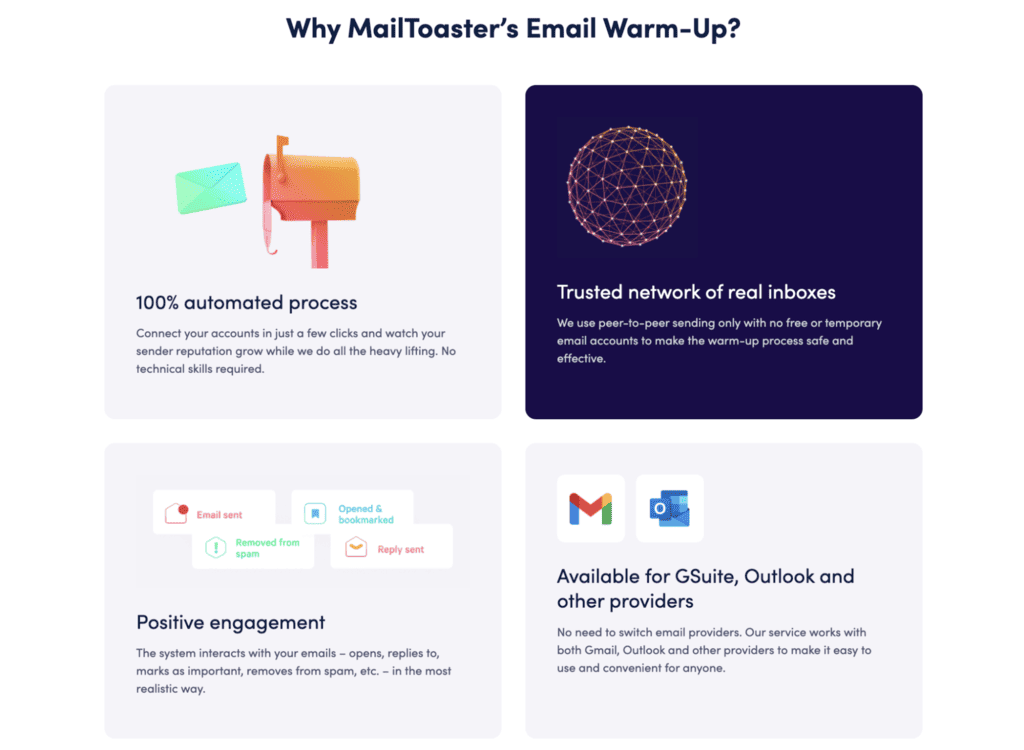
MailToaster is an email warm-up tool built for exactly that layer. You simply connect your Gmail, Outlook, or other provider account in a few clicks, with no provider switch and no technical setup, and it starts sending on your behalf across a peer-to-peer network of real inboxes.
From there, it handles the engagement signals that actually build reputation, which include opening your emails, replying to them, marking them as important, and pulling them out of spam when they land there. All of it gets filed into a separate folder, so your real inbox stays clean.
Two profiles cover the common situations:
- New Email Account for a domain or mailbox with no history, where you’re building reputation from zero.
- Reputation Protect for an established account that’s scaling volume and needs to hold the position it has.
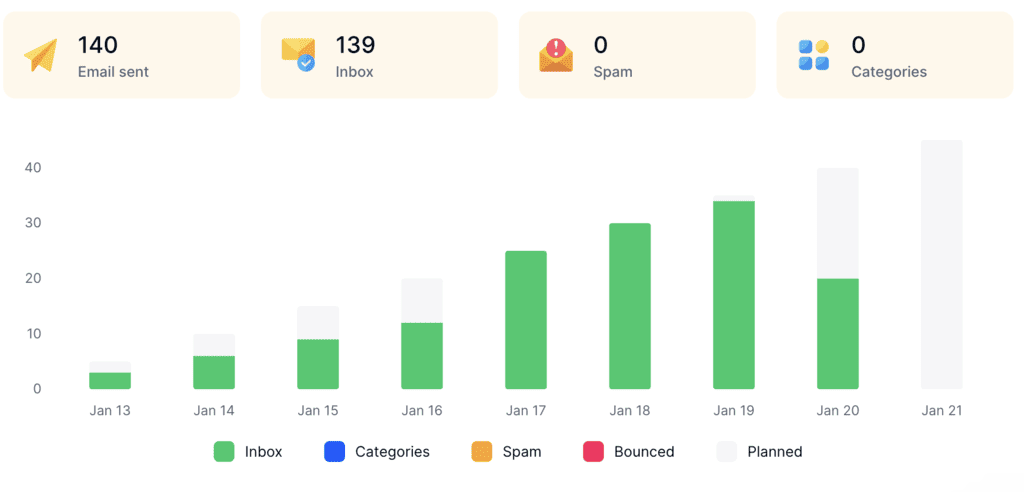
MailToaster also runs an automatic DNS check on your SPF, DKIM, and DMARC records, since broken authentication is another common reason a perfectly normal email gets sent straight to spam, and it stays invisible until it’s too late. Reporting then shows what was sent, what landed in the inbox, what went to spam or a category tab, and what bounced.
Pricing is just \$29 per email account per month, with 10% off on annual plans and a 7-day free trial.
Wrapping up
Knowing how to email large files comes down to picking the right method. For most cases, a cloud storage link is the way to go, your provider’s built-in handoff when you want speed, a transfer service for one-off external sends, compression for documents and data, and re-encoding for video. Check the recipient’s limits before you send, and skip the file types Gmail blocks outright.
Then go and handle the part no file method covers. Warm up your sending domain with MailToaster and confirm your emails are reaching the inbox, because a perfect link sitting in the spam folder is still a missed email.
FAQ
What is the largest file you can send via email?
Around 18MB in practice, even on providers advertising a 25MB cap, because attachments are base64-encoded for transport and gain roughly 33% in size along the way. Outlook.com’s 20MB limit works out closer to 15MB. Anything larger needs a link.
Does zipping a file let me send it?
Sometimes. Zipping saves 50% to 90% on documents, spreadsheets and data exports, so it can bring those under the limit. It saves almost nothing on JPEGs, MP4s and PDFs, which are already compressed, and it won’t get past Gmail’s blocked file types.
How do I email large video files without losing quality?
Share a link instead of compressing. Upload to Google Drive, Dropbox, or an unlisted Loom or YouTube link, and the recipient streams the original. If you have to shrink it, re-encode to H.264 at 1080p with a lower bitrate, which preserves far more quality than zipping ever will.
Can I send large files via email for free?
Yes. Google Drive gives you 15GB free, OneDrive 5GB, and Dropbox 2GB, while WeTransfer’s free tier covers 10 transfers or 3GB per rolling 30 days. Apple’s Mail Drop handles up to 5GB at no cost, with a 30-day download window for recipients.
Why did my email bounce when the attachment was under the limit?
Two likely reasons. Encoding pushed the total message past the cap, since attachments grow about 33% in transit. Or the recipient’s server enforces a lower receive limit than your provider’s send limit, which is common on corporate Microsoft 365 and Google Workspace domains.