

How to Set up Google MX Records for Google Workspace
Your MX record is one line of DNS that decides whether your domain can receive emails at all. Get it wrong and replies vanish, bounce notifications never arrive, and you find out weeks later from a prospect asking why you’ve been ignoring them.
Most people set this record once, watch a test email land, and never look at it again. That’s mostly fine, until a registrar migration or a DNS cleanup quietly reroutes your mail somewhere nobody is checking.
Below, we’ll cover the correct values for 2026, a four-step setup, how to verify it actually worked, and what MX does and doesn’t control once it’s live.
What are Google MX records?
A Google MX record is a DNS entry that tells sending mail servers which server accepts emails for your domain. Point it at Google and mail addressed to @yourcompany.com gets delivered into Gmail. MX stands for Mail Exchange, and the record does exactly one job — naming the destination.
That lookup takes milliseconds. When someone hits send, their mail server queries your domain’s MX record, gets Google’s mail server back, and hands the message over.
Two consequences are worth being clear about. First, no MX record means email bounce rates, because the sending server has nowhere to deliver it. A leftover MX record from a previous provider means mail keeps arriving at that provider, in a mailbox nobody opens anymore.
And one boundary that trips people up constantly is that MX governs email coming in, but has nothing to say about the emails that you send out.
Google MX record values for 2026
One record, smtp.google.com, priority 1. That’s the complete configuration for any domain set up after April 2023, when Google collapsed its old five-record setup into a single entry.
| Field | Value |
|---|---|
| Type | MX |
| Name / Host / Alias | @ (or leave blank) |
| TTL | Registrar default, or 1 |
| Priority | 1 |
| Value / Destination | smtp.google.com |
Domains that signed up before 2023 use a different set, with five distinct records, all starting with ASPMX:
| Mail server | Priority |
|---|---|
| ASPMX.L.GOOGLE.COM | 1 |
| ALT1.ASPMX.L.GOOGLE.COM | 5 |
| ALT2.ASPMX.L.GOOGLE.COM | 5 |
| ALT3.ASPMX.L.GOOGLE.COM | 10 |
| ALT4.ASPMX.L.GOOGLE.COM | 10 |
Google’s documentation is explicit on what to do with those: if your email is working, no changes are required. The legacy MX Google records are still fully supported and route to exactly the same infrastructure. Don’t migrate a working ASPMX setup to smtp.google.com because it looks tidier. You’d be trading zero benefit for a propagation window in which emails can bounce.
Formatting varies by registrar. Some require a trailing dot (smtp.google.com.). Others want the priority and destination on one line (1 smtp.google.com). Squarespace and Wix offer a preset Google option where you don’t type the value at all.
How to set up Google MX records in four steps
Setting up Google Workspace MX records takes about fifteen minutes, most of which is spent waiting.
1. Confirm where your DNS is actually hosted
Your registrar and your DNS host are usually the same company. But if, for example, you bought the domain at GoDaddy and later pointed the nameservers at Cloudflare, Cloudflare is where your records resolve from, and every change you make in GoDaddy’s DNS panel will do precisely nothing.
Check the nameservers before you touch anything else.
If mail is already flowing through another provider, Google’s guidance on changing MX records is worth following to the letter: create your Google Workspace user accounts first, set up a catch-all address, make the switch during a low-volume window like on a weekend evening, and keep an eye out for any crucial emails that may need resending during that window.
2. Remove any existing MX records
Google needs exclusive control of inbound routing. An MX record left over from Microsoft 365, Zoho, cPanel, or an old host will compete with the new one, and this may very well be a symptom of future emails that don’t always reach your inbox.
Export the zone file or screenshot every record before you delete anything. It takes five seconds and it’s your rollback.
3. Add the Google MX record
Add a new record: type MX, host @ or blank, priority 1, value smtp.google.com. Save it.
Field names change from platform to platform, which is where most of the confusion comes from:
| Registrar | Host field | Value field | Watch for |
|---|---|---|---|
| GoDaddy | @ | Points to | TTL defaults to 1 hour |
| Cloudflare | @ | Mail server | Set proxy status to DNS only (grey cloud) |
| Namecheap | @ | Value | Priority sits in a separate MX Priority column |
| Squarespace | @ | Data | Preset Google option available |
| Wix | @ | Value | Preset Google Workspace option available |
If you’re setting up mail on a subdomain rather than the root domain (like support.yourcompany.com), the host field takes support instead of @.
4. Activate Gmail in the Google Admin console
DNS alone doesn’t finish the job. In the Admin console, go to Account → Domains → Manage domains, click Activate Gmail for the domain, and follow the prompts.
Two things may sometimes block this step. Domain ownership has to be verified first, usually with a TXT record. Next, the new records have to be visible, and Google takes up to 72 hours for MX changes to be recognized, though in practice most resolvers pick them up within just a couple of hours.
Don’t schedule a campaign into that window. Sending from a domain when inbound routing is mid-flip is how you end up with replies scattered across two providers.
How to check your MX Google setup is actually working
Two checks, and you need both: one for what DNS publishes, one for whether mail actually arrives.
- Run an MX lookup. Google’s Admin Toolbox Dig and CheckMX tools query your records the way the rest of the internet sees them, and MXToolbox does the same. You’re looking for Google’s records and nothing else, and a stray entry from a previous provider is the most common finding by a wide margin.
- Send a test message from an outside address. A personal Gmail or Outlook account is fine, just make sure to check the spam folder as well as the inbox.
- Reply to the email. Inbound and outbound are separate paths, and a domain that receives mail perfectly can still fail on the way out.
Free MX Record Checker
See exactly which servers receive email for any domain, in the order senders try them — plus every address they resolve to and the platform behind them.
What are MX records?
MX (Mail Exchanger) records tell the internet where to deliver email for your domain. When someone emails [email protected], their server looks up your MX records and connects to the host with the lowest priority number first, falling back to the next one if it’s unreachable.
- Priority is a preference, not a ranking of quality. Lower wins. Equal numbers means random distribution across those hosts.
- MX targets must be hostnames with A/AAAA records — never a bare IP address, and (per RFC 2181) never a CNAME alias.
- No MX record means no inbound mail. A few senders fall back to the domain’s A record, but that behaviour is legacy and unreliable.
This tool also reports whether SPF and DMARC exist on the domain, since those govern outbound mail and are just as load-bearing for deliverability.
Common MX problems and how to fix them
- Mail bounces with “no route to host”. Usually an MX hostname that no longer resolves — a provider you left, or a typo. Remove stale records.
- You changed provider but old mail still arrives at the old one. Both sets of MX records are probably still published. Delete the old ones and lower the TTL before the next migration.
- Only one MX host. Add the backup hosts your provider documents. Google Workspace and Microsoft 365 both accept a single record now, but most other platforms still expect several.
- MX points at a CNAME. Replace the alias with the real hostname, or create an A record with the same name.
- You’re sending cold outreach from this domain. Make sure replies actually land somewhere a human reads — MX pointing at a mailbox nobody monitors is the quiet killer of reply rates.
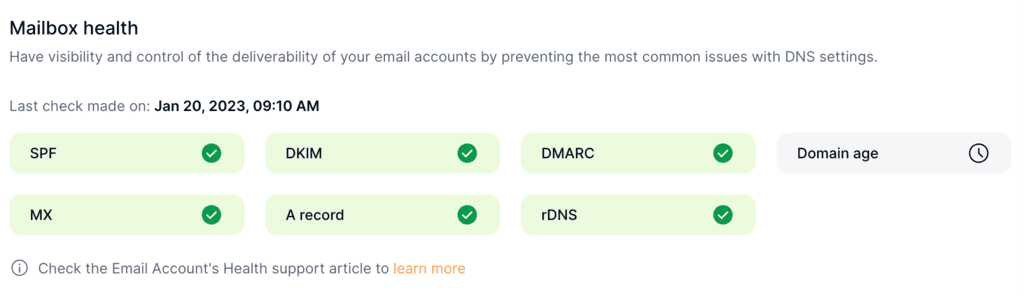
MX is one record among several that decide whether your outbound emails move at all, and all of them drift over time. An email deliverability tool like MailToaster checks the validity of SPF, DKIM, DMARC and other email-related DNS records on every connected account automatically, so a record that breaks gets flagged rather than discovered through a bounce three weeks later.
Why Google Workspace MX records matter beyond setup day
Three key things worth understanding once your Google Workspace MX records are live:
- MX is inbound, while SPF, DKIM and DMARC are outbound → These four get conflated constantly and they do genuinely different jobs. Your MX record tells the world where to deliver mail addressed to you. Authentication records prove that email claiming to come from you actually did. Since February 2024, Google has required SPF or DKIM from every sender to Gmail, and SPF, DKIM and DMARC together from anyone sending more than 5,000 messages a day, with spam complaints held under 0.3%. Your MX record contributes nothing to any of that.
- But a domain that can’t receive mail can’t send effectively either → This is the part outreach teams miss. Replies never arrive, bounce notifications never arrive either, so a dirty list stays dirty and you keep hitting the same dead addresses. There’s no two-way conversation history on the domain, and conversation history is a large part of what mailbox providers read as reputation, which is what ultimately decides your inbox placement. Broken MX doesn’t present a deliverability problem directly, but it prevents you from seeing the full picture of your email campaigns, which then take a hit.
- Your recipient’s MX affects your sending limits →This one is genuinely obscure and it bites at volume. Google’s sender guidelines specify that sending limits are counted against the recipient domain’s MX host rather than the recipient domain itself. Email 200 different companies that all run Google Workspace and you’re drawing on one shared bucket, not 200 separate ones. If your sends get rate-limited earlier than the published numbers suggest they should, that’s often the reason.
MX Records and email warm-up
Email warm-up is a reply-driven process of gradually increasing your email domain activity with natural engagement patterns, like real inboxes opening your messages, replying to them, marking them as important, and so on. It helps you build a positive sender reputation, which your recipients’ email providers then deem trustworthy and therefore allow emails coming from your domain to reach the inbox.
It works both ways, because people responding to your emails is just as important to effectively warm up your email account, which makes your MX record a key precondition for the whole thing. A domain with broken MX cannot be warmed up, because the engagement physically never reaches it.
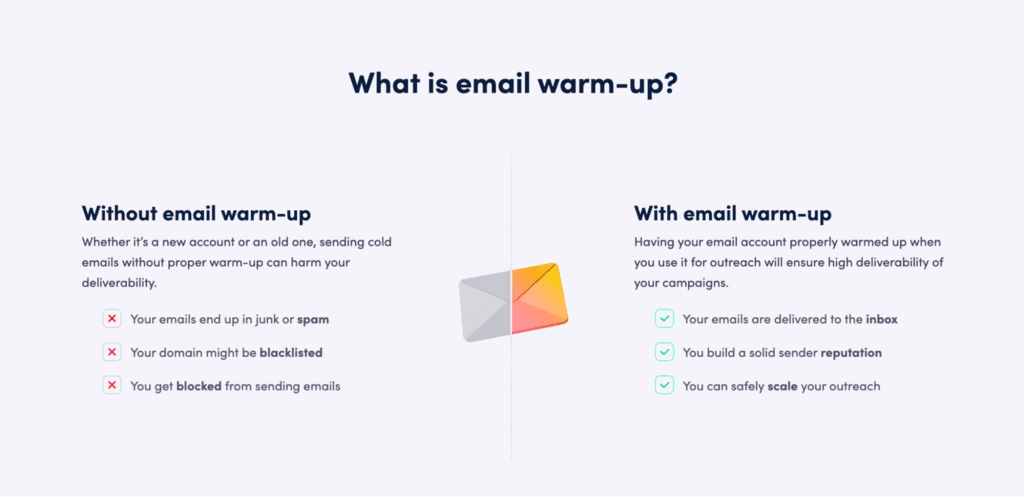
So the order is simple: MX, then authentication, then warm-up, then email outreach at volume. Skip a step and the whole thing collapses once your campaigns go live.
MailToaster handles the warm-up stage on Google Workspace, Outlook, and other providers, using peer-to-peer sending across a network of real inboxes, with no free or temporary accounts padding the numbers. You pick a profile based on your use case, which could be “New Email Account” to build reputation from zero, or “Reputation Protect” to hold it steady on a mailbox that’s already sending. Warm-up mail is filtered into its own folder, so your inbox stays yours.
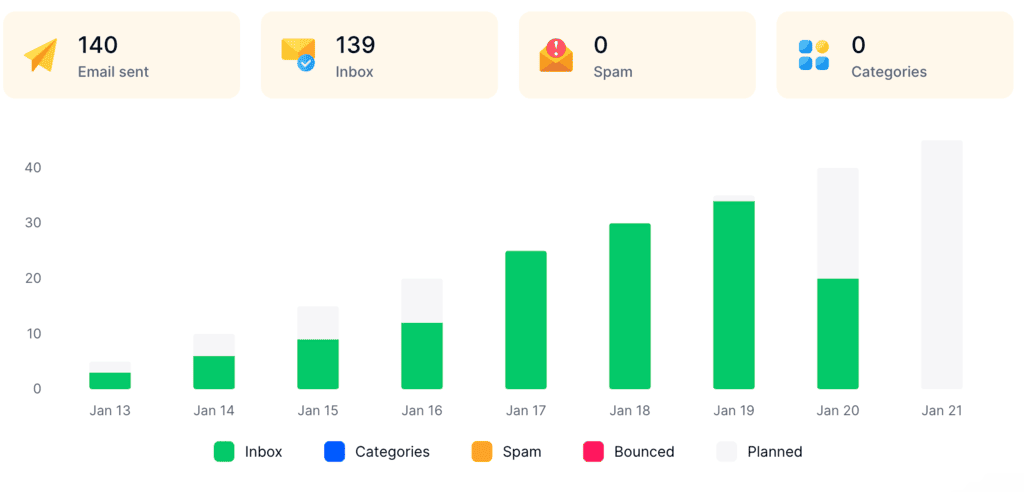
Once sender reputation and infrastructure are intact, scaling volume becomes safe, and that’s where an AI outreach platform like Reply.io takes over, running your email and LinkedIn campaigns at scale, personalizing messages, and identifying targeted leads on autopilot.
Common Google MX problems and how to fix them
Most MX failures come down to five things, and four of them are fixable in minutes:
| Symptom | Likely cause | Fix |
|---|---|---|
| No mail arriving after setup | Leftover MX record from the previous provider | Run an MX lookup, delete anything that isn’t Google’s |
| Mail still going to the old provider | Sending servers caching the old result | Wait it out (up to 48 hours), then retest from a fresh sender |
| “No MX records found” | Propagation incomplete, or domain verification lapsed | Recheck the TXT verification record in the Admin console |
| Works for some senders, not others | Partial propagation across regions | Check propagation globally before changing anything else |
| Records look correct, still nothing | Gmail was never activated in the Admin console | Account → Domains → Manage domains → Activate Gmail |
Wrapping up
MX setup is a simple fifteen-minute job that sets up all your future email campaigns for success. One record, one toggle in the Admin console, one test send from an outside address to confirm it worked, and you’re done.
And remember, MX ensures you receive incoming emails, but it’s authentication and warm-up that ensure your emails get delivered and placed in the inbox. If you’ve just pointed a fresh domain at Google and you’re planning to send from it, that record is the starting line rather than the finish. Connect the mailbox to MailToaster and give it a couple of weeks before you scale volume.
FAQ
What are Google MX records?
Google MX records are DNS entries that route incoming email for your domain to Google’s mail servers, so messages addressed to your domain land in Gmail. The current value is smtp.google.com at priority 1, while older domains still run the five-record ASPMX set. Without a valid MX record, mail sent to your domain either bounces or goes to whichever server the old record named.
How do I set up MX records in Gmail?
You can’t, and clearing that up saves a lot of wasted time. A personal @gmail.com address has no MX records to configure, because you don’t own gmail.com. MX records belong to a domain you control, which makes this a Google Workspace question: add smtp.google.com at priority 1 in your DNS panel, then activate Gmail in the Google Admin console.
How do I add an MX record?
Sign in to your DNS host, open the DNS records section, and create a new record with the type set to MX. Enter @ or leave the host field blank for the root domain, set the priority to 1, and enter smtp.google.com as the mail server. Save it, then allow up to 72 hours for the change to be recognized.
How long do Google MX records take to propagate?
Google allows up to 72 hours, though most public resolvers pick up the change within one to two hours. The long tail comes from sending servers, which cache MX results for up to 48 hours and will keep delivering to your old provider until that cache expires.
Can I use two email providers on one domain?
Not by adding both sets of MX Google records and hoping. Mail follows the lowest priority number available, so a split configuration sends everything to one provider and leaves the other empty. Real split delivery needs routing rules configured inside Google Workspace, not a second MX entry.