

How to Set Up an Email Signature in Outlook and Gmail
Your email signature is the one piece of writing you get to set up once and it then follows you on every new email, reply, and forward. Getting it right takes five minutes, as long as you’re following the right steps for the app you’re actually using, and that can be a little complicated given that Outlook alone now comes in five different versions with five different menus.
Below, we’ll cover what a good email signature includes, how to add and change one in every version of Outlook and Gmail, how to add a logo, how to fix the most common problems, and how your signature quietly affects deliverability.
What is an email signature and what should it include?
An email signature is a short block of text, sometimes with a small logo or a headshot photo, that your email app adds to the bottom of your messages automatically. It tells the reader who you are and how to reach you, without making them dig through old threads for your phone number or company name.
A professional signature in Outlook or Gmail usually needs only five things:
- Your full name
- Your job title
- Your company name
- One phone number
- One link, usually your website, LinkedIn profile, or booking page
Optional extras include a small company logo, a headshot photo, and in some industries, a legal or confidentiality line your company requires:
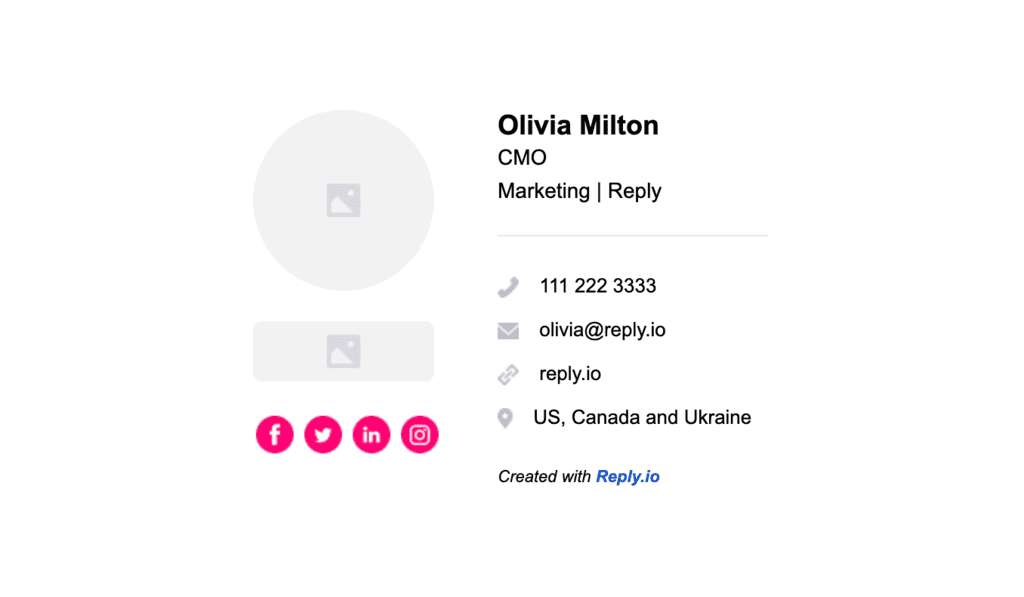
What you should leave out is just as important, so avoid any inspirational quotes, animated GIFs, a row of six social media icons, and contact details baked into an image. These all make the signature heavier and harder to read, and indirectly, it also affects how smooth your high-volume outreach campaigns perform.
Which version of Outlook do you have?
Look at the top right corner of the Outlook window:
- If you see a Settings (gear) icon and the ribbon only has Home, View, and Help tabs, you’re using the new Outlook for Windows.
- If there’s a File tab and no gear icon, you’re on classic Outlook. That’s the exact check Microsoft recommends on its own help page.
- If you open Outlook in a browser at outlook.com or through Microsoft 365, you’re using Outlook on the web, which follows the same steps as new Outlook.
- If you’re on a Mac, everything sits under the Outlook menu next to the Apple logo.
- If you’re on the Outlook app on your phone, that’s a separate case again.
This matters because a signature you create in one version doesn’t automatically appear in the others, so you may need to set it up more than once.
How to add email signature in Outlook
Every version of Outlook keeps its signature settings in a slightly different place, so use this summarized table to find yours at a glance:
| Outlook version | Where to find signatures | Auto-add to new emails and replies |
|---|---|---|
| New Outlook for Windows | Settings > Accounts > Signatures | Yes, separate checkboxes for each |
| Outlook on the web / Outlook.com | Settings > Accounts > Signatures | Yes, separate checkboxes for each |
| Classic Outlook for Windows | File > Options > Mail > Signatures | Yes, separate dropdowns for each |
| Outlook for Mac | Outlook menu > Settings > Signatures | Yes, set per account |
| Outlook app (iPhone and Android) | Settings > Mail > Signature | Always added, one per account or one for all |
New Outlook for Windows and Outlook on the web
New Outlook and Outlook on the web share the exact same steps:
- Select Settings (the gear icon) in the top right corner.
- Go to Accounts > Signatures.
- If you have more than one email account added, choose the one this signature is for.
- Select + Add signature and give it a name you’ll recognize, like “Full” or “Replies”.
- Type your signature in the editing box and format the font, size, and color.
- Tick the checkboxes at the bottom to add it automatically to new messages and to replies and forwards.
- Select Save.
If you’d rather add a signature only to specific emails, leave both boxes unticked. Then, while writing a message, open the Message tab, select Signature, and pick the one you need.
Classic Outlook for Windows
- Open a new email and go to the Message tab.
- Select Signature > Signatures (or go to File > Options > Mail > Signatures from the main window).
- In the E-mail account dropdown, choose the account this signature belongs to.
- Under Select signature to edit, click New and name the signature.
- Write and format your signature in the Edit signature box, using the toolbar to add links or an image.
- Under Choose default signature, pick your signature for New messages and for Replies/forwards.
- Click OK.
Keep in mind that classic Outlook won’t add the new signature to the email you opened in step 1, even if you set it as the default, so make sure to save these settings. For anything more complex than a few lines of text, such as a layout with columns or a table, Microsoft also suggests users build it in Word first and then just paste it into the Edit signature box.
Outlook for Mac
- Open the Outlook menu in the top bar and choose Settings.
- Under Mail, select Signatures.
- Click + to add a new signature and give it a name.
- Type your signature in the editor. The … menu lets you add an image, a link, or a table.
- Under Set default signature, choose your account, then select a signature for For new messages and For replies or forwards.
- Close the Signatures window to save.
If you have several accounts on the same Mac, you’ll need to set the default signature for each of them separately.
Outlook app on iPhone and Android
- Open the Outlook app and go to Settings.
- Under Mail, tap Signature.
- Type your signature, or turn on Per Account Signature to set a different one for each email account.
The mobile signature is completely separate from your desktop one and has far fewer formatting options, though Microsoft is also rolling out the option to insert signature images straight from OneDrive in the iOS and Android apps.
How to change email signature in Outlook
To change your signature in Outlook, go back to the same Signatures settings, select the signature you want to edit, make your changes, and save. The exact path depends on your version:
- New Outlook and Outlook on the web: Settings > Accounts > Signatures, click the pencil (Edit) icon next to the signature, then Save.
- Classic Outlook: File > Options > Mail > Signatures, select the signature, edit it, then click Save and OK.
- Outlook for Mac: Outlook > Settings > Signatures, select the signature, click Edit, then close the window.
- Outlook app: Settings > Mail > Signature, then edit the text.
If your old signature keeps coming back or your changes don’t show up, the cause is usually that you edited it in a different place from the one sending your emails.
According to Microsoft, classic Outlook (build 2303 or later) saves default signatures to your mailbox for Microsoft 365 and Outlook.com accounts, so they follow you across devices. POP, IMAP, and on-premises Exchange accounts don’t roam, which means every computer keeps its own copy.
On top of that, the phone app always retains its own mobile signature, and if your IT team manages signatures centrally, theirs will override yours no matter what you change.
Your email signature only does its job if people actually see it, and that depends on whether your emails reach the inbox at all. If you’re setting one up on a brand-new mailbox, Gmail and Outlook have no sending history to judge it by yet, so launching emails at volume will most likely land them in spam. The solution — email warm-up.
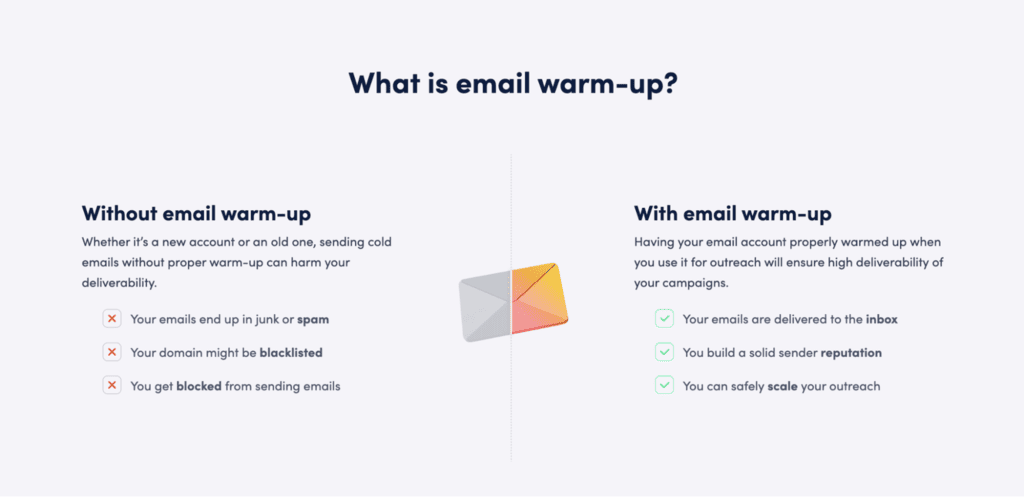
MailToaster is an email warm-up tool that solves exactly that, helping you get your email accounts ready for outreach. With its “New Email Account” feature, MailToaster gradually builds a sending reputation for new mailboxes before you start emailing at volume, creating a gradual and positive engagement history that Gmail and Outlook judge senders on.
How to add email signature in Gmail
Gmail handles signatures in two places: the desktop settings, which apply whenever you use Gmail in a browser, and the Gmail mobile app, which has its own separate signature.
Gmail on desktop
- Open Gmail, click Settings (the gear icon) in the top right corner, and select See all settings.
- On the General tab, scroll down to Signature and click Create new.
- Name the signature and click Create.
- Type your signature in the box. The toolbar lets you change fonts, link your website or booking page, and insert an image.
- Under Signature defaults, choose your signature for For new emails use and On reply/forward use.
- Scroll to the very bottom of the page and click Save Changes.
That last step is the one many people miss, since the button sits far below the signature box, and if you leave the page without clicking it, Gmail discards everything. To change your Gmail signature later, simply follow the same path, select the signature, edit it, and save again.
You can switch signatures while writing by clicking the pen icon at the bottom of the compose window, and if you send from several addresses using “Send mail as”, a dropdown above the signature box lets you give each address its own signature.
Gmail app on Android and iPhone
On Android, open the Gmail app, tap Menu, go to Settings, choose your account, tap Mobile signature, type your signature, and tap OK.
On iPhone and iPad, tap Menu > Settings, open Signature settings under Compose and Reply, turn on Mobile Signature, and type your signature.
The Gmail app only supports plain text signatures, set separately for each account. If you don’t create one, the app falls back to your desktop signature, but as soon as you turn on a mobile signature, it replaces the desktop version on every email you send from your phone.
Signatures for a whole Google Workspace team
Workspace admins can add a standard footer to everyone’s outgoing email from the Admin console under Apps > Google Workspace > Gmail > Compliance > Append footer. It works well for legal lines and company-wide text, but users can’t see or edit the footer, and changes can take up to 24 hours to apply.
For proper personal signatures that follow one company template, admins usually set them through the Gmail API or with a signature management app from the Workspace Marketplace.
How to add a logo or image to your email signature
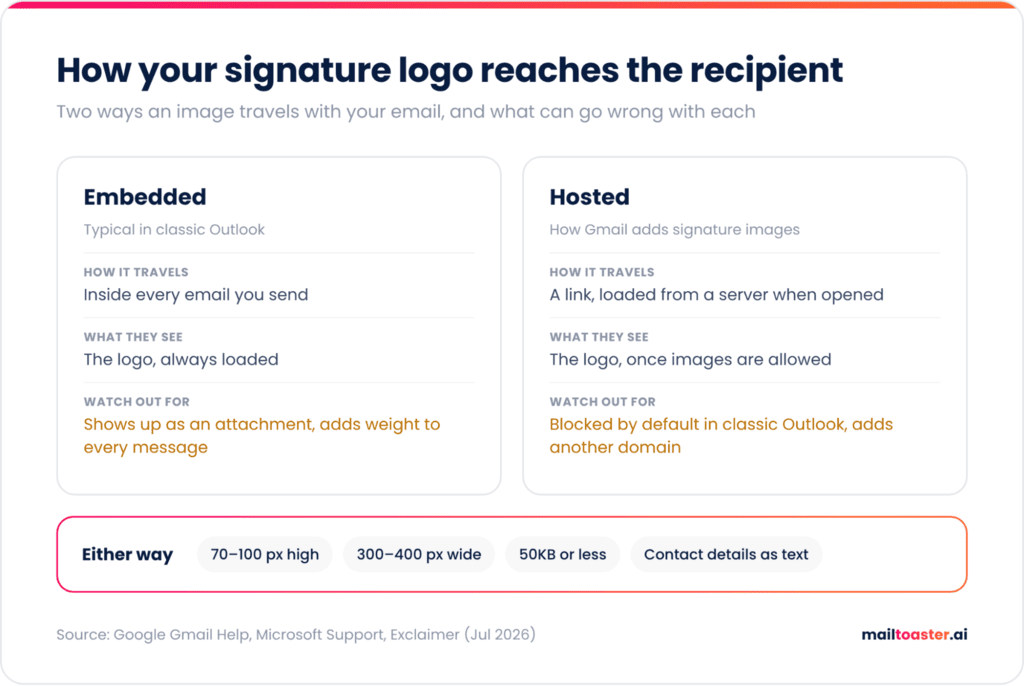
To add a logo to your email signature, resize the image first, then insert it through the image button in your signature editor. Uploading a full-size logo and shrinking it in the editor is the most common reason signatures look broken on the other end.
Google recommends a signature image that’s 70 to 100 pixels high and 300 to 400 pixels wide, with a maximum of 100 by 1,000 pixels. On top of that, there’s a file size limit that you’re advised to stay under, and it’s just at 50 KB.
The image button sits in a slightly different spot in each app:
- In Gmail, click the image icon in the signature toolbar and choose Google Drive, Upload, or Web address (URL). A Drive image has to be shared publicly, or recipients won’t see it.
- In classic Outlook, click the image button in the Edit signature box, select your file, and click Insert. To resize it, right-click the image, choose Picture, and use the Size tab with Lock aspect ratio turned on.
- In the new Outlook, Outlook on the web, and Outlook for Mac, use the image icon in the signature editor toolbar (on Mac, it’s under the “…” menu).
Gmail links to an image hosted online, which keeps the email lighter, but classic Outlook blocks automatic picture downloads by default (the same setting that stops tracking pixels from telling a sender you’ve read their email), so many recipients see an empty box until they click to download pictures.
Either way, the fix is the same — keep your name, title, company, and phone number as real text, so the signature still works when the logo doesn’t load.
Email signature not working? How to fix common problems
Most signature problems come down to three main causes: you followed the steps for a different version, a separate mobile or admin signature is overriding yours, or the recipient’s app is stripping your formatting. These are the fixes for the ones that come up most often:
| Problem | Likely cause | Fix |
|---|---|---|
| Signatures button is grayed out or the window won’t open (classic Outlook) | A faulty add-in or a corrupted Outlook profile | Start Outlook in safe mode (press Win + R and run outlook.exe /safe). If that works, disable add-ins one by one. If not, repair Office or create a new Outlook profile |
| The steps don’t match your screen | You’re in a different Outlook version | Check for the gear icon (new Outlook) or File tab (classic) first |
| Signature missing on replies | It’s only set as the default for new emails | Set a default for Replies/forwards (Outlook) or On reply/forward (Gmail) |
| Old signature keeps coming back | Roaming, mobile, or admin-managed signature | Edit the signature where it actually lives, or ask IT |
| Logo shows as an attachment or an empty box | Embedded image, blocked download, or a private Drive file | Use a small hosted image, and share Drive images publicly |
| Formatting disappears | Plain text mode | Gmail: in a new email, open More options and untick Plain text mode. Outlook: Format Text tab > HTML |
Keeping a clean text-only version of your signature means it looks right across all mailbox providers, and if yours currently lives in HTML, you can convert it to plain text here in a few seconds:
Free HTML to Plain Text Converter
Strip HTML down to clean, readable text — keeping the structure that matters. Built for generating the plain-text version of an HTML email, but it handles any markup you throw at it.
HTML in
Plain text out
Why every HTML email needs a plain-text version
- Spam filters read it. A multipart email with a missing or junk text part is a classic spam signal. Filters also compare the two parts — if they say wildly different things, that counts against you.
- Some people never see your HTML. Text-only clients, screen readers, smart watches and locked-down corporate setups all fall back to the text part.
- Auto-generated text parts are usually bad. Many tools flatten your HTML into an unreadable wall including every tracking URL. Writing or cleaning it yourself takes a minute and reads better.
- Keep the two versions saying the same thing — same offer, same call to action, same links. Don’t strip the CTA out of the text version.
- For cold outreach, consider text only. Plain-text email looks like it came from a person rather than a marketing department, and it sidesteps image-blocking entirely.
What gets converted
<h1>–<h6>become headings — underlined, uppercase or markdown, your choice.<ul>/<ol>keep their bullets and numbering, including nesting.<a>can keep its URL inline, move it to a numbered footnote list, keep just the anchor text, or vanish entirely.<img>becomes its alt text in square brackets — a good way to spot images that have no alt text at all.<blockquote>gets>prefixes,<pre>keeps its spacing,<hr>becomes---, and tables become pipe-separated rows.<script>and<style>are dropped. Nothing in the HTML you paste is ever executed — it’s parsed into a detached document that never touches this page.
Can your email signature hurt deliverability?
A signature on its own won’t send your emails to spam, but it’s the one block of content attached to every email and every reply you send, so anything wrong with it gets repeated across your entire outbox, and mailbox providers are very good at noticing patterns.
A signature usually starts working against you in one of four ways:
- It grows with every reply: Each quoted message in a thread carries its own copy of your signature, and Gmail clips any email over 102KB of HTML behind a “View entire message” link. Signatures pasted from generators or Word get there much faster.
- Every link adds a domain to check: Filters check each logo, social, and booking link against blocklists, and Google’s email sender guidelines ask for links that are visible and easy to understand. Use full URLs on your own domain and skip link shorteners.
- Server-side signature tools can break authentication: Exclaimer notes that these tools have to be included in your SPF record, and DKIM has to be applied after the signature is added, or authentication can fail on every email you send.
- Cold emails need a plain signature: Your name, title, company, and one link in plain text reads as a real person wrote it, which is exactly what a stranger’s inbox should see.
Get those four right and your signature stops being a liability. What it can’t do is earn trust for you, because mailbox providers decide inbox placement based on your sender reputation long before anyone opens your email, let alone scrolls down to your name.
How MailToaster helps your emails land in the inbox
A clean signature removes reasons to filter your emails, but trust itself comes from sending history, which includes how often people open, reply to, and rescue your emails from spam, and how rarely they complain. A new mailbox or one that hasn’t done much volume simply doesn’t have enough of that history yet.
MailToaster builds that sender reputation for you through automated email warm-up. Once you connect your Gmail, Outlook, or other mailbox, it exchanges emails with a peer-to-peer network of real inboxes, with no free or temporary accounts involved. Those inboxes open your emails, reply to them, mark them as important, and move them out of spam whenever they land there.
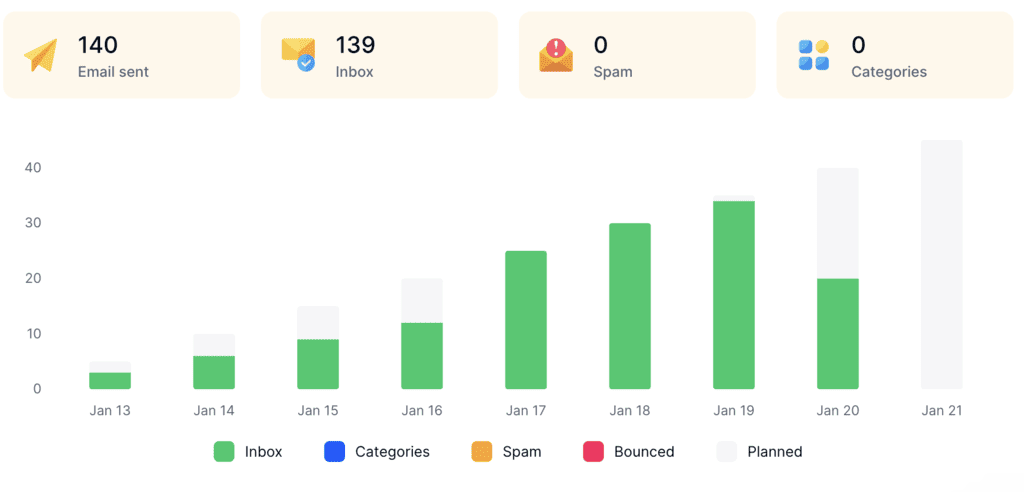
You can pick the New Email Account profile for a mailbox starting from zero, or Reputation Protect to keep an established one healthy while you send. MailToaster also checks your SPF, DKIM, and DMARC records, which is handy for catching the signature tool problem above, and its reports show how many emails landed in the inbox, in spam, or in a category tab.
MailToaster is a lightweight tool that simply works in the background to ensure all your email accounts are battle-ready for any kind of outreach, and it costs just $29 per month (10% less on the yearly plan) with a 7-day free trial to test it out.
Final thoughts
Setting up an email signature takes just a few minutes, as long as you set it up in every app you send from, desktop and phone included. Keep it to four or five lines of real text, add a small logo or image only if you need one, and send yourself a test email to see what recipients actually get.
For outreach at scale, it’s generally best to strip it back to plain text and one link. And before a new mailbox starts sending at volume, warm it up with MailToaster’s 7-day free trial to ensure your emails reach their designated inboxes, and your signature actually gets seen.
FAQ
Can I use different signatures for new emails and replies?
Yes, Outlook (all desktop and web versions) and Gmail on desktop both let you choose one default signature for new emails and another for replies and forwards. A common setup is a full signature on new emails and a short one, with just your name and title, on replies.
Why are there two dashes above my Gmail signature?
Gmail adds a “–” line above your signature to separate it from the message. To remove it, go to Settings > See all settings > General, and under Signature defaults, tick the option to insert your signature before quoted text in replies and remove the “–” line, then click Save Changes.
Do Outlook signatures sync between my computer and phone?
No, the Outlook app on iPhone and Android uses its own signature, which you set under Settings > Mail > Signature. Desktop signatures can sync between computers through roaming signatures, but only for Microsoft 365 and Outlook.com accounts.
How long should an email signature be?
Keep it to four or five lines: name, title, company, one phone number, and one link. Anything longer adds clutter to every reply in a thread and pushes long conversations closer to Gmail’s clipping limit.