

Best AI Email Management Tools for Organizing Your Inbox
The average worker receives over 100 emails a day, and most of them get skimmed in under a minute. That’s exactly how a client’s question ends up buried under newsletters and cold pitches, waiting days for an answer.
AI email management tools take that sorting off your plate, deciding what needs your attention, pushing the noise aside, drafting replies, and reminding you when it’s time to ping someone who hasn’t written back.
Below, we’ll break down what these tools actually do, compare the seven best options with prices and real limitations, and show how to pick the right one for your inbox.
What is AI email management?
AI email management is the use of machine learning and large language models to sort, prioritize, summarize, and answer email for you, based on who sent it, what it says, and how you’ve handled similar messages before.
Old-school filters only do what you tell them, so a rule like “move everything from newsletter@ to Updates” breaks the moment a sender changes their address. AI models focus on and read context instead, so a reply from your manager and a cold pitch get treated differently even when neither matches a rule, and the system keeps learning from how you react to each message as time goes.
What can AI email management tools do?
AI email management tools take over five jobs in your inbox, though most specialize in just one or two of them. That’s why it’s always best to match the tool to your biggest bottleneck instead of picking the one with the longest feature list.
- Prioritizing → scores each new email on the sender, your history with them, and whether it needs action from you. Copilot, for example, labels Outlook mail as high, normal, or low priority and explains its reasoning.
- Sorting → works as an AI email organizer, filing newsletters, receipts, and pitches into their own labels or folders so the main inbox only shows real conversations.
- Following up → brings back threads nobody answered, and tools like Superhuman also draft the nudge in your voice.
- Summarizing and search → condenses long threads into a few lines and lets you ask your inbox questions in plain language. Google made thread summaries in Gmail free for everyone in January 2026.
- Drafting → learns your tone from your sent folder and prepares replies for you to review, edit, and send.
If you also use drafting assistants for outbound, check the copy before it goes out to a whole list, because one salesy phrase in a template gets repeated in every email. Paste your draft below to see which words a spam filter might flag.
Free Email Spam Checker
Paste your subject line and copy to see what a spam filter sees — every trigger word highlighted in place, scored, with the fix for each one. Nothing is uploaded; the analysis runs in your browser.
Your copy, with every trigger marked
What this score does and doesn’t tell you
Content is only part of why email goes to spam — and honestly, not the biggest part. This tool checks the part you control while writing.
- What it checks: trigger vocabulary, structure, formatting, links, personalisation and the patterns filters are trained on.
- What it can’t check: your sending domain’s reputation, whether SPF, DKIM and DMARC are set up, how warmed up the mailbox is, your bounce and complaint rates, and whether the recipient has engaged with you before. Those matter more than wording — a perfect email from a cold domain with no authentication still lands in spam.
- A single trigger word almost never gets you filtered. Modern filters score the whole message. Concentration is what hurts, which is why density is scored separately here.
- Clichés are scored gently on purpose. “Hope this email finds you well” won’t send you to spam — it will just get your email ignored, which costs you the same meeting.
Fix the infrastructure too
If your email is landing in spam despite clean copy, the cause is almost always authentication or reputation:
- Publish SPF, DKIM and DMARC on the sending domain. Google and Yahoo now require all three from bulk senders — without them you’re throttled or rejected before anyone reads a word.
- Warm up new domains and mailboxes over several weeks. A brand-new domain sending hundreds of cold emails on day one is the single fastest way to get blocked.
- Keep your bounce rate under 2–3% by verifying addresses before you send. High bounce rates tell providers you’re working from a scraped list.
- Keep complaints under 0.3%. One person hitting “report spam” costs you more than a hundred deletions.
- Send from a separate domain for cold outreach so a bad campaign can’t damage the reputation of the domain your invoices and support replies go out on.
7 best AI email management tools compared
The seven tools below cover every type of AI email management software, from free built-in assistants to dedicated email clients. Here’s how they compare at a glance, with full breakdowns right after the table:
| Tool | Type | Works with | What the AI does | Starting price |
|---|---|---|---|---|
| MailToaster | Email warm-up | Gmail, Google Workspace, Outlook, other providers | Builds sender reputation so your own emails reach the inbox | $29/email account/mo, 7-day free trial |
| Gemini in Gmail | Built-in assistant | Gmail | Thread summaries, drafts, AI Inbox to-dos | Free basics, AI Inbox from $7.99/mo (US) |
| Microsoft Copilot in Outlook | Built-in assistant | Outlook on Exchange Online | Priority labels, summaries, drafts | $21/user/mo (Copilot Business) |
| Superhuman Mail | AI-native client | Gmail, Outlook | Auto Labels, Auto Archive, follow-up drafts | $33/user/mo, billed annually |
| Fyxer | AI layer | Gmail, Outlook | Inbox categories, drafts in your tone | $37/mo, billed annually |
| SaneBox | Server-side filter | Any provider and email app | Moves low-priority mail out of your inbox | $9.49/mo, or $4.54/mo on a 2-year plan |
| Shortwave | AI-native client | Gmail, Google Workspace | AI filters, bundles, AI search | Free plan, AI filters from $30/seat/mo |
1. MailToaster
Almost every tool on this list helps you write, sort, and manage your emails faster. But if you’re sending large volumes of emails, the one layer you definitely need in your stack is an email warm-up tool that will ensure your authentication, sender reputation, and spam rates are always in check, so that your emails can actually land in your recipients’ inboxes.
MailToaster is an email warm-up tool that does exactly that job by building your email accounts a positive history that ensures your emails successfully go through the multiple filters that email providers have in place.
You simply connect a Gmail, Google Workspace, Outlook, or other mailbox in a few clicks, and it starts exchanging emails with a peer-to-peer network of real inboxes that open, reply to, mark as important, and rescue your emails from spam, which are exactly the signals that mailbox providers reward.
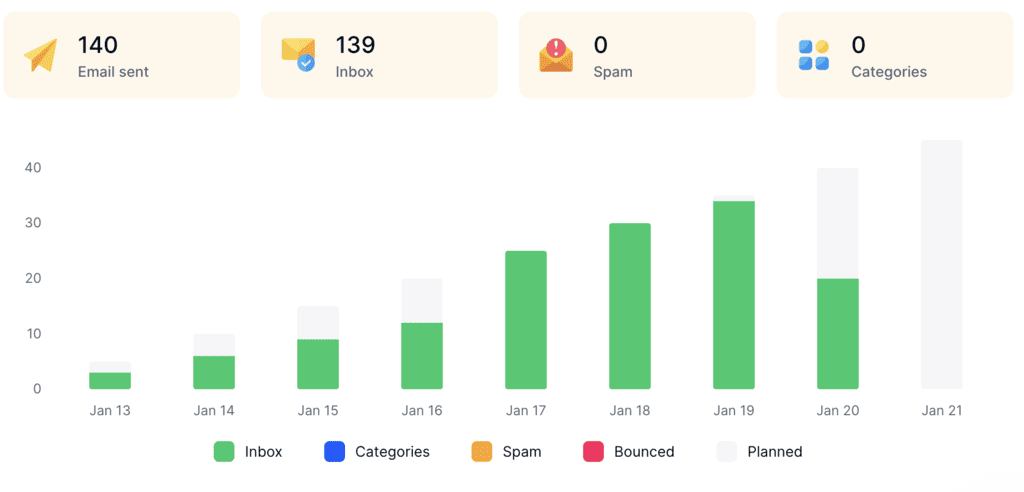
Choose New Email Account to build reputation from scratch or Reputation Protect to keep an active mailbox healthy as volume grows. The AI-written warm-up emails are all unique and land in a separate folder, so your main inbox always stays clean. Plans start at just $29 per month with a 7-day free trial to get a feel for the product right away.
Key features:
- Fully automated warm-up with New Email Account and Reputation Protect profiles
- Peer-to-peer network of real inboxes, with no free or temporary accounts
- Realistic engagement with opens, replies, marked as important, and rescued from spam
- AI-written unique warm-up emails, or your own templates
- SPF, DKIM, and DMARC checks plus inbox, spam, and category placement reports
Best for: Teams sending AI-assisted outreach or replies at volume that need those emails to land in the inbox and not in spam.
2. Gemini in Gmail
Gemini is Google’s AI built directly into Gmail, so there’s nothing to install, and not much of a learning curve either. Since January 2026, the core features have been free in the US in English, which includes AI Overviews that summarize long threads, Help Me Write that drafts or polishes emails, and Suggested Replies that match your writing style.
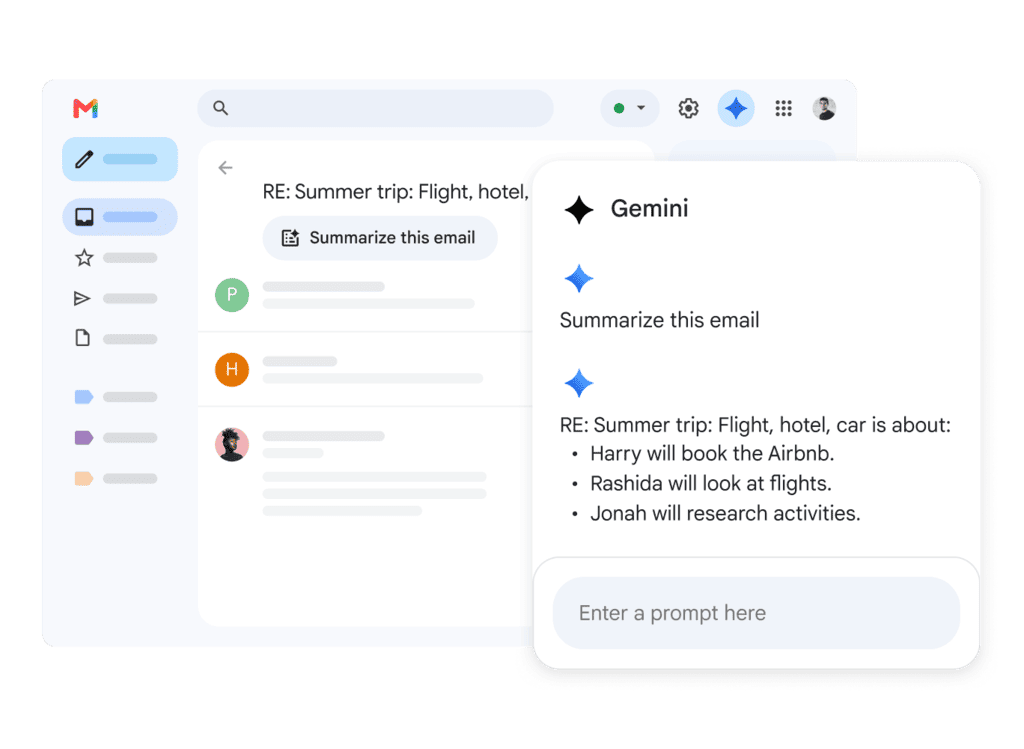
The organizing piece is AI Inbox, which turns your inbox into suggested to-dos and topics to catch up on. It decides which emails need the most attention based on the people you email frequently, your contacts, and relationships it infers from message content. After launching for AI Ultra subscribers, it’s rolling out to AI Plus ($7.99 per month) and AI Pro ($19.99 per month) in the US.
The trade-off is reach, since Gemini only works in Gmail, availability depends on your plan and region, and AI Inbox is a separate view next to your regular inbox, so heavy clutter still needs labels or filters.
Key features:
- AI Overviews that summarize long threads (free)
- Help Me Write and Suggested Replies in your style (free)
- AI Inbox with suggested to-dos and catch-up topics (paid, US)
- Plain-language questions about your inbox (AI Pro and Ultra)
- Proofread for grammar, tone, and style (AI Pro and Ultra)
Best for: Gmail users who want AI help without switching apps or paying for a separate tool.
3. Microsoft Copilot in Outlook
Copilot is the AI assistant inside Outlook for Microsoft 365, and its “prioritize my inbox” feature labels each new email as high, normal, or low priority, with a short reason in the reading pane. You can steer it with instructions like “it’s from my manager” or “mentions the Q4 budget”, and it weighs who’s on the thread, their job titles, and whether the email needs immediate action from you.
Copilot also summarizes threads, drafts emails at the tone and length you choose, and flags tone and clarity issues through Coaching by Copilot.
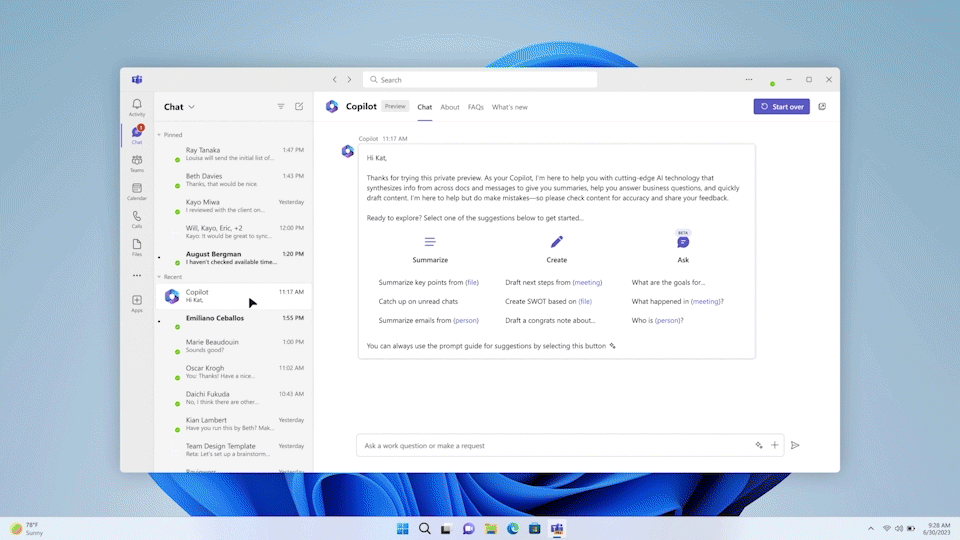
There are two catches worth knowing before you buy. Prioritization only applies to mail that arrives after you turn it on, and it needs a Microsoft 365 Copilot work license plus a mailbox on Exchange Online, which rules out a Gmail account added to Outlook. For reference, Copilot Business costs $21 per user per month.
Key features:
- Prioritize my inbox with high, normal, and low labels plus reasons
- Custom priority instructions in plain language
- One-click thread summaries
- Draft with Copilot and Coaching by Copilot
- Settings that carry across Outlook desktop, web, and mobile
Best for: Microsoft 365 teams that want AI triage inside the Outlook they already use.
4. Superhuman Mail
Superhuman Mail is a fast, keyboard-driven email client for Gmail and Outlook. Grammarly acquired Superhuman in July 2025, and Mail now ships in the Superhuman suite alongside Grammarly, Docs, and Go.
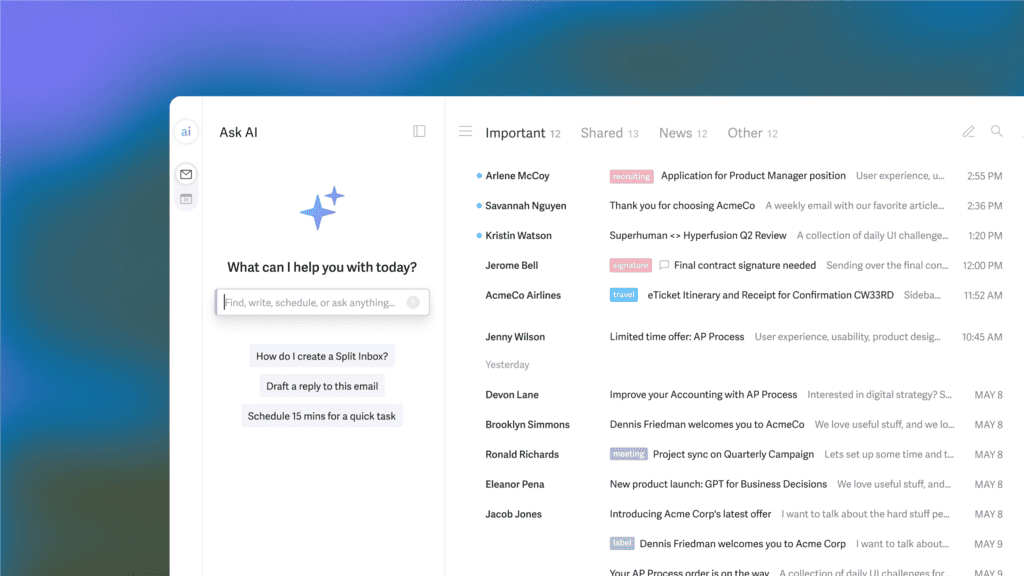
Its organizing system rests on Split Inbox and Auto Labels, along with built-in labels for Marketing, News, Pitch, and Social that go to an “Other” split by default, so the main view only shows real conversations. On Business, you can write custom Auto Labels as prompts, like “any email with an invoice, receipt, or bill”, and Auto Archive keeps chosen labels out of your inbox but never hides people you’ve written to before.
For follow-ups, Auto Reminders resurface threads that haven’t received a reply, and Auto Drafts write the nudge in your voice. Mail is only included in the Business plan, at $33 per user per month billed annually or $40 billed monthly.
Key features:
- Split Inbox with built-in and prompt-based custom Auto Labels
- Auto Archive for low-priority labels
- Auto Reminders and Auto Drafts for follow-ups
- Ask AI and Write with AI that match your voice and tone
- Keyboard shortcuts for every action
Best for: Professionals handling high email volume who want speed and heavy automation in one app.
5. Fyxer
Fyxer is an AI email assistant that works on top of your existing Gmail or Outlook account, so your team keeps the inbox it already works with and finds new email already sorted. It labels every incoming message by category, lifts the ones that need a response to the top, and prepares replies in your tone that only go out when you approve and hit send.
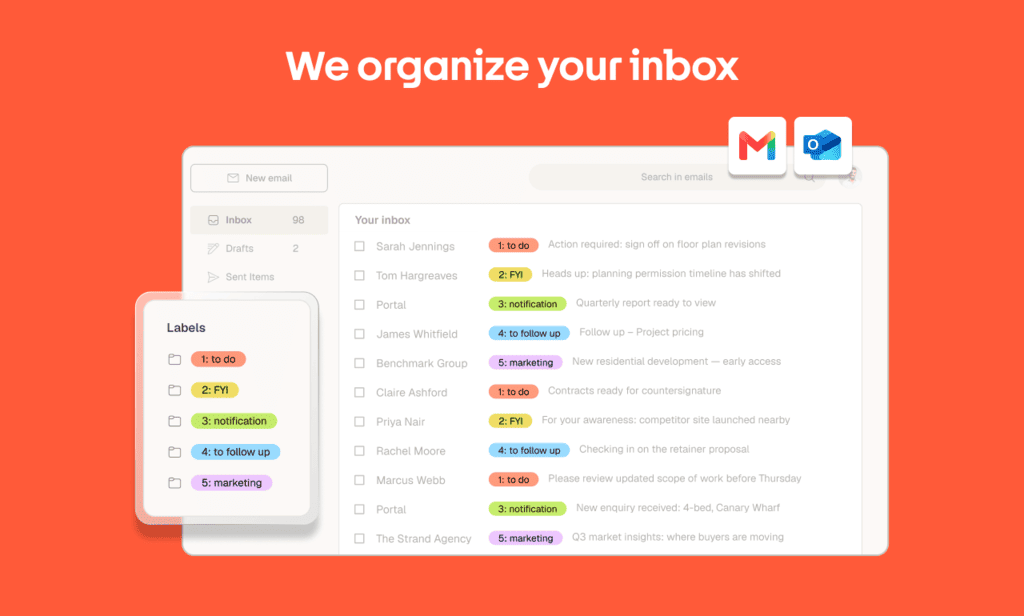
It also takes meeting notes, records video on paid plans, and drafts the follow-up email after each call. The detail people miss is that the free plan doesn’t sort your inbox or draft replies, since both start on Pro, at $37 per month billed annually or $49 billed monthly, and Team costs $64 per member per month billed annually.
Key features:
- Automatic labeling of every new email in Gmail or Outlook
- Draft replies written in your tone, sent only by you
- Meeting notes with drafted follow-up emails
- An always-updated follow-up list
- SOC, ISO 27001, HIPAA, and GDPR compliance badges
Best for: Busy professionals who want sorting and ready-to-send drafts without changing email apps.
6. SaneBox
SaneBox works on the mail server, so there’s no new app or sidebar to learn. It moves unimportant email out of your inbox into folders like SaneLater before any app displays it, which is why it works with practically any provider and client, including Gmail, Outlook, and Apple Mail on your phone.
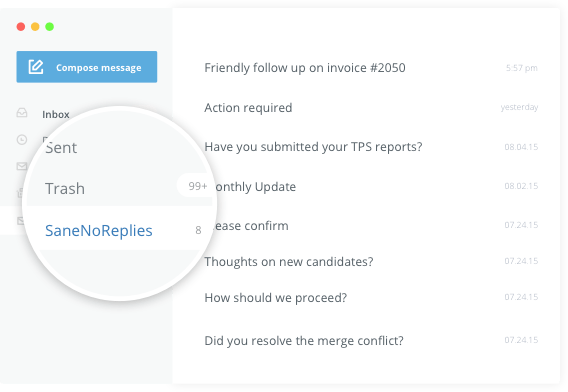
It judges importance from email headers like the sender and subject, and you train it by dragging an email into a Sane folder or back to your inbox. That header-only approach also matters for privacy, since by default SaneBox never accesses message bodies or attachments, which is a real difference from AI tools that read full content.
The limit is that SaneBox organizes and doesn’t write, so you won’t get drafts or summaries. Pricing starts at $9.49 per month for one account and two features, or $4.54 per month on a two-year plan, with a 7-day free trial.
Key features:
- SaneLater and other smart folders for low-priority mail
- A Daily Digest of everything that was filtered
- SaneBlackHole to banish a sender in one drag
- SaneNoReplies and reminders for follow-ups
- Support for any email provider and client
Best for: People who want a calmer inbox in the email apps they already use, with minimal data access.
7. Shortwave
Shortwave is an AI-native email client for Gmail and Google Workspace, built for people who live in their Gmail and want a sleek AI email management tool. Its AI assistant runs on Anthropic’s Claude models and digs through years of email to answer questions, summarize threads, and write replies in your style.
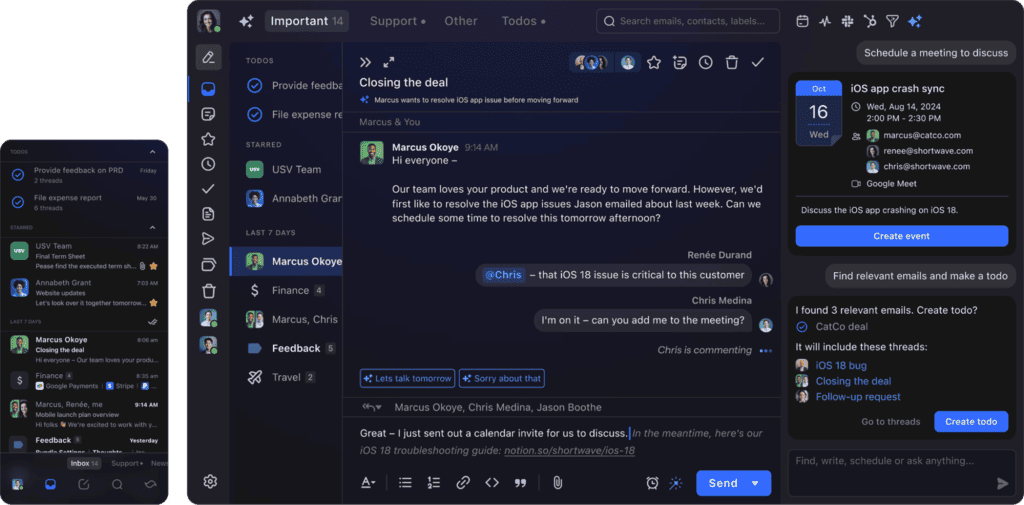
Organization runs through Splits, Bundles that group similar emails, delivery schedules that batch non-urgent mail, and AI filters, which are rules written in plain English, like “label anything from a recruiter as Hiring”. You get 3 AI filters on Business, 10 on Premier, and 50 on Max.
The main limitation is that Shortwave connects natively only to Gmail and Google Workspace, so Outlook or Yahoo accounts have to be routed through Gmail first. There’s a free plan with 90 days of history, Pro costs $18 per month, and AI filters start with Business at $30 per seat per month.
Key features:
- AI assistant that searches and answers across your email history
- AI filters written in plain language
- Splits, Bundles, and delivery schedules
- Personalized AI writing and instant summaries
- Todos, follow-up reminders, and team comments
Best for: Gmail and Google Workspace power users who want AI search and smart organization in one client.
How to choose the right AI email management software
The right tool depends less on feature lists and more on five practical factors:
- Your email provider → Copilot needs Outlook on Exchange Online, Gemini and Shortwave need Gmail, Superhuman and Fyxer cover both, and SaneBox works with almost anything.
- Your real bottleneck → If noise is the problem, start with a sorting tool like SaneBox. If unanswered emails pile up, a drafting assistant like Fyxer will save you more time.
- How much control you hand over → Labeling is low-risk, while auto-archiving and drafting need more trust. Start at the lowest level that solves your problem, and move up once the tool has earned it.
- How much of your email it reads → Most AI tools process full message content, while SaneBox reads only headers by default. Google requires any third-party app with restricted Gmail access that handles your data on its servers to pass an independent security assessment (CASA) at least every 12 months, so check that the tool has one.
- The real cost per seat → A $33-per-month seat across a 10-person team adds up to $3,960 a year, so run a small trial on your real inbox before committing.
AI inbox management works both ways
Nowadays, it comes as no surprise that the same AI that sorts your inbox also sorts your emails in other people’s inboxes. Superhuman labels cold pitches as Pitch and moves them to its “Other” split by default, and Gmail’s AI Inbox decides who matters based on the people someone emails frequently. For a new sender, that means every cold email has to get through two layers of security, first past the spam filter first, and then past the recipient’s inbox AI.
What moves you up in both is a strong sender reputation based on a history of real and positive engagement, like replies, emails rescued from spam, and so on. That’s why an email warm-up tool like MailToaster is a necessary addition to your stack before your mass-campaigns go live, protecting your inbox placement from the very first send.
Final thoughts
The best AI email management tool is the one that fits your provider and fixes your biggest time drain. Start with the built-in assistant if you’re on Gmail or Outlook, add SaneBox or Fyxer if noise or replies still eat your day, and give any new tool around a week of real use to really judge its performance.
And if you send email at volume, make sure the mailboxes doing it have the reputation to get read. Try MailToaster free for 7 days and warm up your accounts before your next campaign.
FAQ
Can ChatGPT organize my emails?
Partly. ChatGPT can connect to Gmail to find, summarize, and help prepare replies when you ask it to, but it doesn’t sit in your inbox sorting new mail as it arrives. For ongoing organization, a dedicated tool like Gemini, Copilot, or SaneBox does a better job.
Is it safe to let AI read your email?
It can be, as long as you check what the tool accesses and how it’s audited. Look for SOC 2 or ISO 27001 compliance, a CASA assessment for Gmail apps, and a clear statement on whether your email is used to train AI models. Header-only tools like SaneBox see far less than assistants that read every message.
Is there a free AI email management tool?
Yes. Gemini in Gmail gives everyone free thread summaries, Help Me Write, and Suggested Replies, and Shortwave has a free plan with basic AI. Fyxer also offers a free plan, but it doesn’t sort your inbox or draft replies.
Do I need to switch email apps to use AI?
No. Gemini and Copilot are built into Gmail and Outlook, Fyxer works inside your existing inbox, and SaneBox sorts mail on the server for any app. Only AI-native clients like Superhuman and Shortwave ask you to switch.